How to Design a WordPress Template: Theme and Layout Customization
Learn how to design a WordPress template using Customizer, Full Site Editor, and child themes.
Understanding WordPress templates
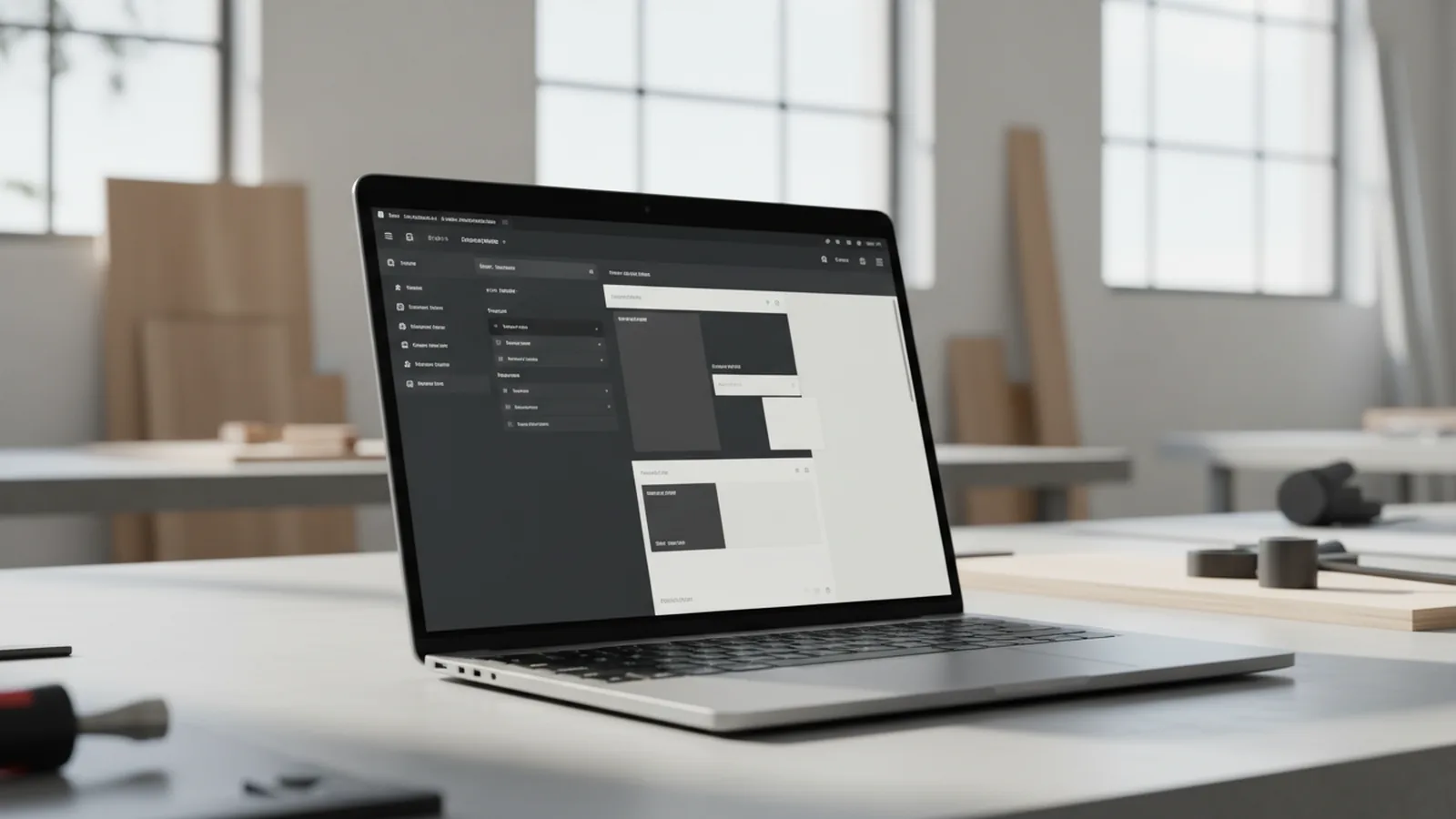
If you want to know how to design a wordpress template, start with this simple idea. A template is a set of rules that controls how content is shown on your site. It affects layout, typography, spacing, and where blocks appear on key pages like posts and pages.
In WordPress, templates also connect the design to the content model. For example, a single post template defines how each blog post renders. A page template defines how static pages like “About” or “Pricing” render.
Templates serve a clear purpose in website design. They make your site feel consistent while still letting each page type be different. They also help you reuse design patterns across many pages.
When people ask how to design a wordpress website, they often mean “how do I make pages look right.” Templates are the main tool for that job. You will usually work through theme settings first, then refine templates with the editor.
Block themes vs classic themes
WordPress now supports two broad theme styles. Block themes are built around the block system and can be edited using the Full Site Editor. Classic themes rely on PHP templates and the old customization flow.
You can tell what you are using by checking how the theme behaves in the editor. If your WordPress setup offers a Full Site Editor experience for the theme, you likely have a block theme. If customization focuses on Theme Customizer options and classic template files, it is likely classic.
This matters because it changes where you design. With block themes, you can adjust layouts and template parts visually. With classic themes, you often need theme files or child themes for deeper changes.
- Block themes: Visual editing of templates with blocks and template parts.
- Classic themes: Design often comes from PHP template files and settings.
- Common case: You still use templates even if the theme is classic.
Choosing the right WordPress theme for your goals
Choosing a theme is the fastest way to get to a good “first draft.” If your goal is how to design a blog on wordpress, start with a theme that supports readable post layouts. Look for strong typography, good spacing, and a clear sidebar or full-width option.
For a business site, you want templates that support landing pages and marketing sections. Themes with built-in page layouts can reduce the number of custom templates you need later. For a portfolio, prioritize work grids, detail page layouts, and image presentation.
Think about your audience too. If readers mainly use phones, pick a theme that has tested responsive design. If your audience is accessibility-sensitive, pick a theme that preserves semantic headings and supports keyboard navigation.
Before you install, evaluate the theme’s customization depth. Check whether the theme offers a Full Site Editor workflow, and how much you can change without code. This step helps you decide whether you will rely on the WordPress Customizer or a deeper setup with a child theme.
- Write down your page types: Home, blog index, single post, about, and contact.
- Match to theme support: Choose a theme that offers the right layouts for those types.
- Check editor compatibility: Prefer themes that work well in Full Site Editor if available.
- Validate on mobile: Preview the theme at multiple widths before you commit.
Customizing basics with the WordPress Customizer
The WordPress Customizer is where you make safe, common changes. It is a good fit for how to design wordpress themes when you want quick updates without template work. You can usually change site identity, colors, menus, and some layout settings.
Start by editing your site identity. Update the site title and tagline, then set your logo and favicon if your theme supports it. Good branding matters because it anchors every template and template part you later customize.
Next, adjust colors and typography. Pick a primary color that supports contrast and a text color that stays readable on white or dark backgrounds. Many themes expose header, link, button, and background colors in the Customizer.
Then handle navigation and core page structure. Set your primary menu, decide whether your theme uses a static front page, and configure footer widgets if the theme includes them. Small menu structure mistakes can make even a beautiful template feel broken.
- Site identity: Logo, title, tagline, and favicon.
- Colors: Background, text, links, and button styles.
- Header: Layout options and header image or hero styles.
- Navigation: Menus and front-page display rules.
One practical tip for how to design a wordpress site offline. If you are doing local development, set up your theme changes locally first. Use the Customizer options you can access there, then mirror the same settings in production.
Using the Full Site Editor for layout and design changes
The Full Site Editor is the modern way to design templates with blocks. If you want to see how to design a wordpress template with finer control, this is usually the tool. It lets you edit templates and template parts visually, similar to how you edit pages and posts.
In the Full Site Editor, you work with template parts like headers, footers, and featured section blocks. This is where your design becomes reusable across many pages. For example, you can change your header layout once and have it update everywhere.
When you edit a template, you define the layout for that content type. A “Single Post” template might include a featured image, title, meta line, content area, and related posts. A “Blog Index” template might include a post grid and pagination style.
Use this editor to tune design details that the Customizer cannot reach. Adjust block spacing, alignments, and component styles. You can also ensure consistency between a blog and pages by reusing the same template parts.
| What you edit | Where it shows up | Typical use |
|---|---|---|
| Template | One content type | Single post layout or page layout |
| Template part | Many templates | Header, footer, call-to-action blocks |
| Global styles | Across the site | Fonts, colors, and button variants |
If your goal is how to design a wordpress website, treat the Full Site Editor as your design system tool. Start by setting your global styles and reusable template parts. Then adjust templates for content-specific layouts.
Creating a child theme for deeper customization
Child themes are for when you need control beyond what the editor provides. They are also the safe way to make changes without losing updates. If you are learning how to design wordpress themes for real use, child themes are usually part of the path.
You might need a child theme when you want to add custom template files, adjust PHP behavior, or override theme functions. With a block theme, you may still use child themes for advanced features or to ship small code tweaks.
For classic themes, child themes are especially important. If you edit the parent theme directly, updates can overwrite your work. A child theme keeps your modifications separate and maintainable.
A good child theme plan is simple. Copy only what you need, then override the templates or assets you want to change. Keep changes small so you can debug and update later.
- Create the child theme folder and files: Include the required style file and metadata.
- Enqueue assets carefully: Add custom CSS or scripts without replacing everything.
- Override templates: Add only the template files you need to change.
- Test template changes: Confirm behavior on home, blog, and single content views.
If you aim to design your own wordpress theme or build from scratch, you will eventually use child themes or full theme scaffolding. But even when you start from a strong theme, a child theme helps you own the final output.
Best practices for designing WordPress templates
Good template design is not only about visuals. It is also about layout stability, readability, and how easily future changes stay consistent. If you want how to design a blog template that remains usable as you add categories, plan your template structure early.
Start with responsive design. Use consistent spacing rules so blocks do not jump on mobile. Test your templates at phone, tablet, and desktop widths. Many theme layouts look fine on desktop but break when images and long titles stack.
Accessibility in web design should be part of your process. Use heading order that matches the page structure. Ensure link color and text color have enough contrast. Also make sure focus states are visible for keyboard users.
Next, keep templates predictable. Prefer a limited set of block patterns. When you add a new section type, decide whether it belongs in a template or a template part. This keeps your site consistent and reduces future editing time.
- Check contrast: Verify text and button colors are readable.
- Use clear headings: One main heading and logical subheadings.
- Test on multiple devices: Don’t rely on desktop previews only.
- Reuse template parts: Keep header and footer consistent.
- Plan for growth: Design blog templates for more posts over time.
Finally, if you are working offline, plan your workflow. For how to design wordpress site offline, set up a local WordPress environment and install the theme you plan to use. Then test your Customizer changes and Full Site Editor layouts before you push to hosting. Once things match locally, export your changes and deploy carefully.
With these steps, you can go from “theme installed” to “site design done.” That is how to design a wordpress template in a way that stays maintainable.
Frequently asked questions
- What is a WordPress template and what does it control?
- A WordPress template is the layout rules for a page type, like a single post or a static page. It controls where elements like titles, headers, and content appear.
- What is the difference between block themes and classic themes?
- Block themes are designed for visual editing with the Full Site Editor. Classic themes rely more on PHP templates and Customizer options for changes.
- How do I customize a theme using the WordPress Customizer?
- Open Appearance and use the Customizer to change identity, colors, header settings, and menus. Then preview updates before publishing.
- What can I do in the Full Site Editor that I can’t do in the Customizer?
- You can edit templates and reusable template parts with blocks. This is where you redesign layouts for single posts, blog indexes, and headers.
- When should I use a child theme instead of changing the parent theme?
- Use a child theme when you need deeper changes or want safe updates. It keeps your overrides separate from the parent theme so updates won’t wipe your work.
- How can I design a WordPress site offline?
- Set up a local WordPress install, then install your theme and test Customizer and Full Site Editor changes. When it matches locally, move the same theme and settings to production.
Related reading
WordPress Galleries for Images and Video
Build a WordPress gallery with native blocks or a plugin.
What Is PHP in WordPress and How Do You Work With It?
See how PHP runs WordPress and learn to find and edit its key files safely.
Can You Use HTML in WordPress? Here’s How
Add and edit HTML in WordPress without breaking your pages.