Which WordPress Theme Should I Use? Templates, Detection, and Pick
Learn what WordPress themes do, how to detect them, and how to choose one.
Introduction to WordPress Themes and Templates
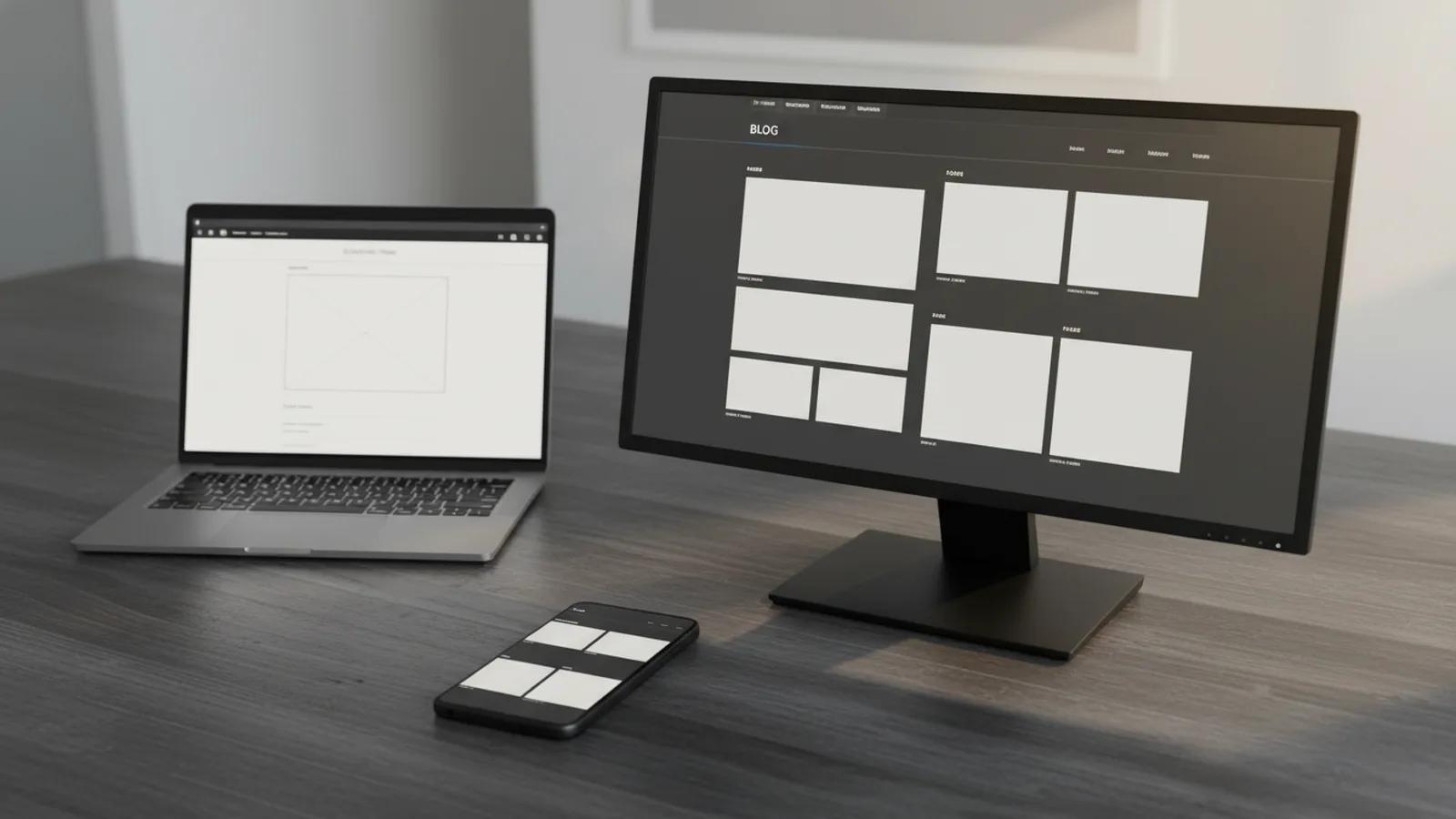
To pick the right site setup, you first need clarity on what WordPress theme and template files do. Many people search for which wordpress template controls a page because they want predictable layout behavior. Others search for which wordpress theme powers a site because they want a similar design and feature set.
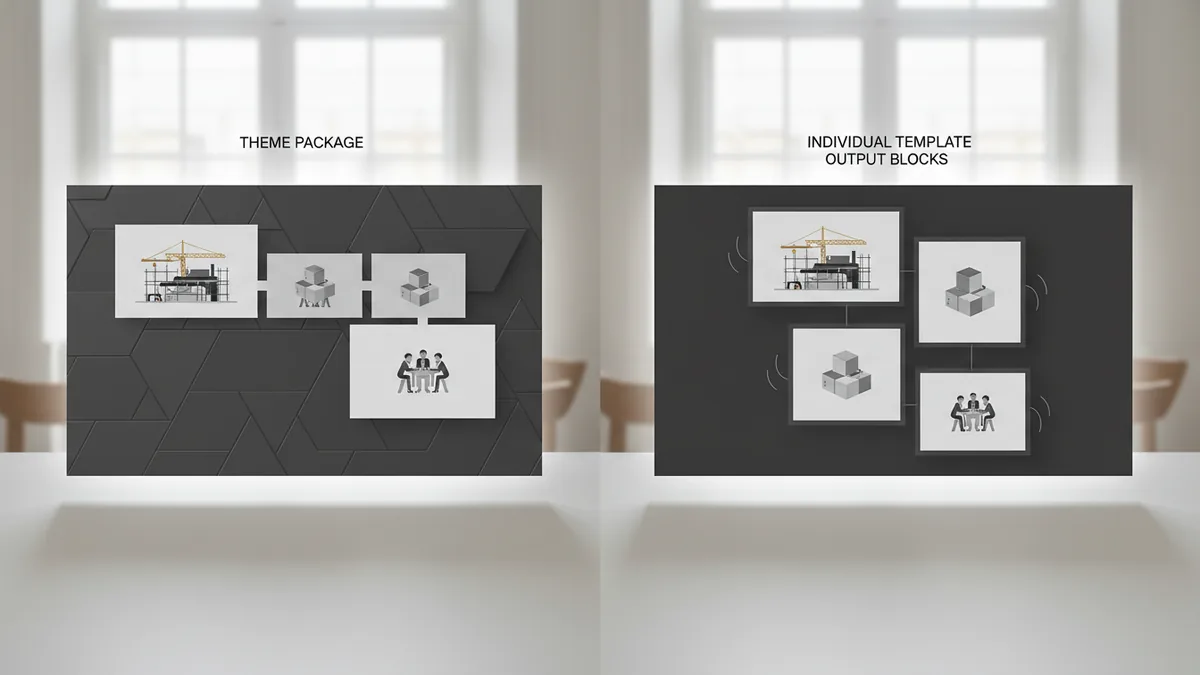
In plain terms, a theme is the full package. It controls site styling, layout options, and how WordPress renders key page types. A template is a specific file that outputs the markup for a given view, like a blog post, an archive page, or a product page.
Theme choice also affects performance and plugin fit. If you install a theme that fights your plugins, you will see layout breaks or slow pages. If you install a theme that works with your tools, changes stay simple.
- Theme: overall design plus behavior across the site
- Template: the file or template type used for a page view
- Customization: theme options, child themes, and targeted edits
Understanding Template Files (and Template Hierarchy)
Template files are the building blocks that render pages. When you view a post, WordPress picks the matching template file for that post type. When you view an archive or a category, WordPress swaps in a different template.
WordPress uses a system called the template hierarchy. It selects the most specific template it can find. If the most specific file is missing, WordPress falls back to a more general one.
This is why your question “what wordpress theme is that” often needs context. The same theme can show different layouts depending on which template file WordPress selects. Also, many sites use child themes to override templates without changing the parent theme.
| Template area | What it usually controls |
|---|---|
| Single post or page | The main layout for one article or one page |
| Archive and category | How lists of posts are displayed |
| Header and footer | Site wrapper, navigation placement, scripts, and widgets |
| Search results | The layout used after a visitor runs a search |
| Product pages | Often driven by eCommerce templates |
When a site looks “off,” the root cause is often a template override. It might be a theme setting, a child theme edit, or a plugin template hook. That is why template logic matters for both design and troubleshooting.
How to Identify Which WordPress Theme a Site Uses
If you want to answer detect wordpress theme questions fast, do it in layers. Start with what you can see, then confirm with tools. Your goal is to reach the same result by two paths.
First, inspect the page layout and styling. Check the header height, typography scale, spacing, and how sidebars behave. Then compare multiple page types, like a post page and a category page. Themes often share wrappers but differ inside the content area.
Next, look at the markup footprint. Many themes load distinct CSS and JavaScript bundles. Some themes also print unique widget areas that stand out across pages.
Finally, use a theme detector tool. These tools try to match known theme files and plugin footprints. If the detector says one theme but visuals show another, trust the visuals for now, because themes can be heavily customized.
- Check homepage layout and a single post page
- Open an archive or category to see list styling
- Verify plugin features by page behavior
- Run a theme detector and compare results
This helps you answer “which wordpress theme is that” in a practical way. It also helps you choose which wordpress theme should i use by mapping visible features to real theme capabilities.
Using Theme Detectors and Plugin Footprint Clues
Theme detectors help you move from guessing to evidence. They usually look for CSS file names, template markers, and bundled scripts. Some also spot plugin footprints, which helps explain why a page has specific modules.
When detectors show an eCommerce setup, check for product behavior. WooCommerce often changes product loops, cart layouts, and checkout flows. If a site sells items, the theme selection often follows which wordpress plan for woocommerce expectations. Many teams pick plans based on hosting speed and admin tools, not only on price.
If you are seeing slow pages, do not blame the theme too quickly. The real issue can be a plugin that adds heavy scripts, extra queries, or slow assets. That is where the question “which plugin is slowing down wordpress” becomes relevant. Start by testing plugin impact one by one in a staging copy.
Also remember that WordPress runs on server requirements. If your host misses them, WordPress may not work at all. For many setups, you may see the requirement for a mysql extension which is required by wordpress. Without the right database connection layer, pages fail even if the theme is fine.
- Theme detectors: identify likely theme candidates
- Plugin footprints: explain features you see
- Staging tests: confirm what changes slow the site
- Server checks: confirm required extensions and setup
Factors to Consider When Choosing a WordPress Theme
Now to the decision part: you might ask which option is the best for your use case. People often search for which wordpress plan is best or “best” themes, but a better approach is to match needs to features. A theme can look great and still be a poor fit for your content types.
Start with design needs. Do you run a content blog, a service site, or an online store? If your priority is writing and archives, focus on typography controls and clean archive templates. If you run eCommerce, look at layout support for product pages and filters.
Next, check responsive design. Open the theme demo on multiple screen sizes and scroll long pages. A responsive theme keeps menus usable, buttons tappable, and images cropped nicely. If the theme breaks on mobile, visitors will bounce.
Then check SEO-friendly output. You want clean HTML and predictable headings. Avoid themes that rely on heavy scripts to build basic layout. Also look for solid performance practices.
Theme performance matters in practice. Some themes ship many features you never use. That can add scripts and styles you do not need, which increases load time. You can spot this risk by checking page weight in browser tools.
Finally, consider theme customization options. Child themes let you change templates safely. If you plan to edit header or archive behavior, a theme that supports overrides will save time.
| Decision factor | What to verify | What “good” looks like |
|---|---|---|
| Design fit | Does the layout match your page types? | Posts, pages, and archives look consistent |
| Responsive design | Does it work on mobile? | Menus and content remain readable |
| SEO-friendly themes | Are headings and markup clean? | Pages render without layout glitches |
| Theme performance | How heavy are scripts and styles? | Fast first load and quick interactions |
| Plugin compatibility | Does it play well with your plugins? | Minimal conflicts with key features |
WordPress vs Blogger vs Blogspot (and why it changes your theme goals)
You may also compare wordpress and blogger which is better for your goals. Or you may ask which is better blogger or wordpress. Some people also ask which is better blogspot or wordpress. In practice, the “better” answer depends on how much control you want.
WordPress gives you full theme control and plugin options. Blogger and Blogspot tend to be simpler to start, but customization options can be limited. If you need deep design control for multiple content types, WordPress usually fits better.
If you plan to build a serious archive, WordPress also helps you shape templates as your site grows. If you only need a basic blog, the extra complexity of WordPress can feel unnecessary. That is why the “better” decision is mostly about maintenance and flexibility.
Also note that WordPress theme choice is not just visuals. It affects editor workflows, template overrides, and compatibility with your content plugins.
Popular WordPress Themes and Providers (What to Look For)
When people search popular wordpress themes, they usually mean themes with clear layouts and strong support. Look for providers with active updates and a history of theme compatibility fixes. Also check whether the theme offers child-theme friendly structure.
Here are categories of popular themes you can narrow quickly. This helps you decide which wordpress theme is best for blogging and which wordpress theme should i use for your style. Pick a category first, then confirm performance and customization options.
- News and magazine themes for multi-column feeds and tag-heavy archives
- Content-focused themes for clean typography and fast article pages
- Business and service themes for landing pages and lead capture blocks
- eCommerce themes built for product loops, cart layouts, and checkout flows
For stores, you also need to think about hosting and admin workflow. That is where questions like which wordpress plan for woocommerce come in. The best plan is the one that keeps pages responsive during traffic spikes and supports your plugin stack.
When you troubleshoot deeper issues, knowing where connection details live can help. WordPress often stores database settings in a config file, which may be described as which wordpress file contains database connection info. If you are unsure, ask your host for the exact file path on your setup.
One more comparison you might see is which is better wordpress or blogger. If your priority is long-term template control and plugin-driven features, WordPress usually wins. If your priority is minimal setup and low admin work, Blogger may feel easier.
Use your detection results as a shortlist tool. Then test a small set of themes against your real pages, not demos. This is the fastest way to land on the theme that truly fits.
Conclusion and Recommendations
To choose a WordPress theme, start with the basics: theme vs template. A theme controls the overall look and behavior, while templates decide page output. Then learn how WordPress selects templates through template hierarchy.
When you need to answer “which wordpress theme is that,” use a two-step process. Inspect pages visually, then confirm with a theme detector. Also note plugin footprints so your theme choice matches real features.
For selection, focus on design fit, responsive design, SEO-friendly themes, performance, and plugin compatibility. Do not chase a generic “best” list if it does not match your content types. Instead, test on your own staging site and measure page speed.
If you are comparing WordPress with Blogger or Blogspot, decide based on control and maintenance. WordPress offers more theme control and plugin flexibility. Blogger can be simpler, but customization and feature reach are often more limited.
Finally, keep troubleshooting grounded. If your site is slow, test for the plugin that might be adding heavy work. If WordPress fails, check the server setup, including the mysql extension which is required by wordpress on many hosts.
Frequently asked questions
- How do I know which WordPress template a page uses?
- Inspect the page behavior and template-controlled areas, then look for overrides in the theme or child theme. Template hierarchy helps explain why WordPress selects one file over another.
- What does a theme detector tell me?
- It guesses the theme by matching known assets and markup patterns. Always compare the detector result with real page layout on the site.
- Which WordPress theme is best for blogging?
- Choose a content-focused theme with strong typography controls and archive layouts. Also check how fast it loads with your key plugins.
- Which plugin is slowing down WordPress?
- Disable plugins one by one on a staging site and measure load and interaction time. Look for heavy scripts, many database queries, and large asset bundles.
- Which WordPress file contains database connection info?
- Many installs store database host, name, user, and password in the WordPress config file. Ask your host for the exact file path for your setup.
- Which is better blogger or WordPress for control?
- WordPress is better when you want full theme control and plugin features. Blogger can be simpler if you only need basic publishing.
Related reading

Can You Make Money on WordPress?
Turn useful WordPress content into products, services, and steady income.
How to Design Your Website Using WordPress
Plan, build, publish, and maintain a WordPress site with confidence.
How Do I Hide My WordPress Site From Public View?
Lock your whole site or limit access to selected WordPress content.