What Is WordPress? Core Features, Themes, Plugins, and Setup
What does WordPress do? Learn core features, themes, plugins, and how to install it.
Overview of WordPress
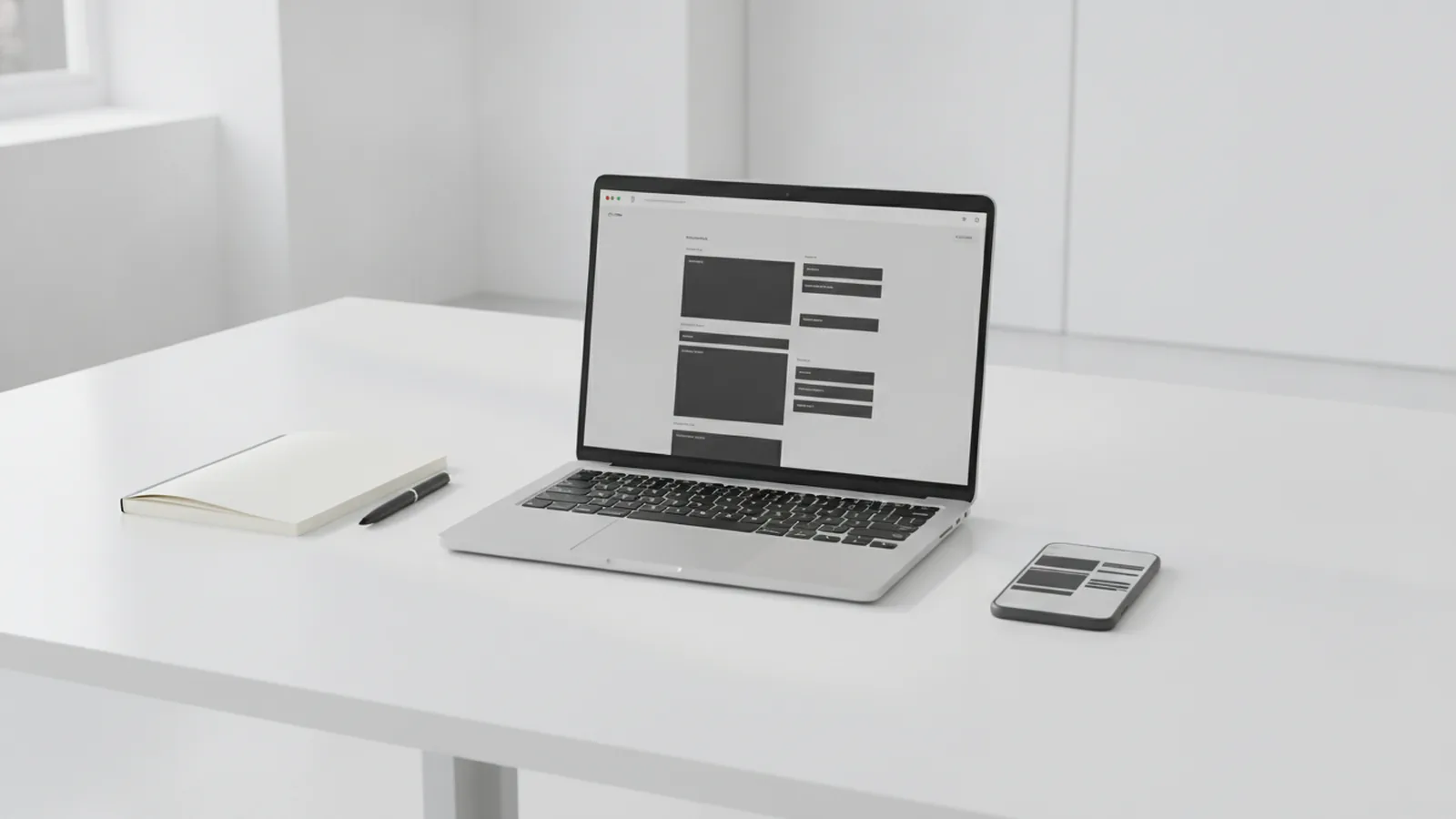
WordPress is an open-source content management system (CMS) for building and running websites. If you are wondering “what does WordPress do,” the short answer is this: it helps you publish content, manage pages, and shape the site’s design without building everything from scratch.
WordPress started in 2003. Today it powers more than 40% of all websites globally, which is why you will find so many tutorials, integrations, and ready-made designs.
It is also considered user-friendly. You can add posts, upload images, and edit pages through a dashboard, even if you have limited coding knowledge.
Because it is open-source software, developers can review it, extend it, and share improvements. That community support is a big reason it is so flexible for many website goals.

Key features that answer “what does WordPress do”
At its core, WordPress helps you create and organize content. You can write blog posts, publish pages, and manage media like images and videos in one place. It also includes built-in tools for categories, tags, and author information.
WordPress has a user-friendly interface that makes day-to-day updates simple. You can edit content in an editor, preview changes, and then publish when you are ready. Most workflows feel similar to working in a document app.
It also supports customizable user roles. For example, you can give one person an editor role for reviewing drafts and another person an admin role for managing plugins and settings. This matters for teams, agencies, and multi-author blogs.
Here are common tasks WordPress supports out of the box:
- Create posts with schedules and draft states
- Manage media libraries for images and downloads
- Build page layouts using blocks and reusable sections
- Set permissions using roles and capabilities
- Control how content appears with menus and navigation
Types of websites you can create
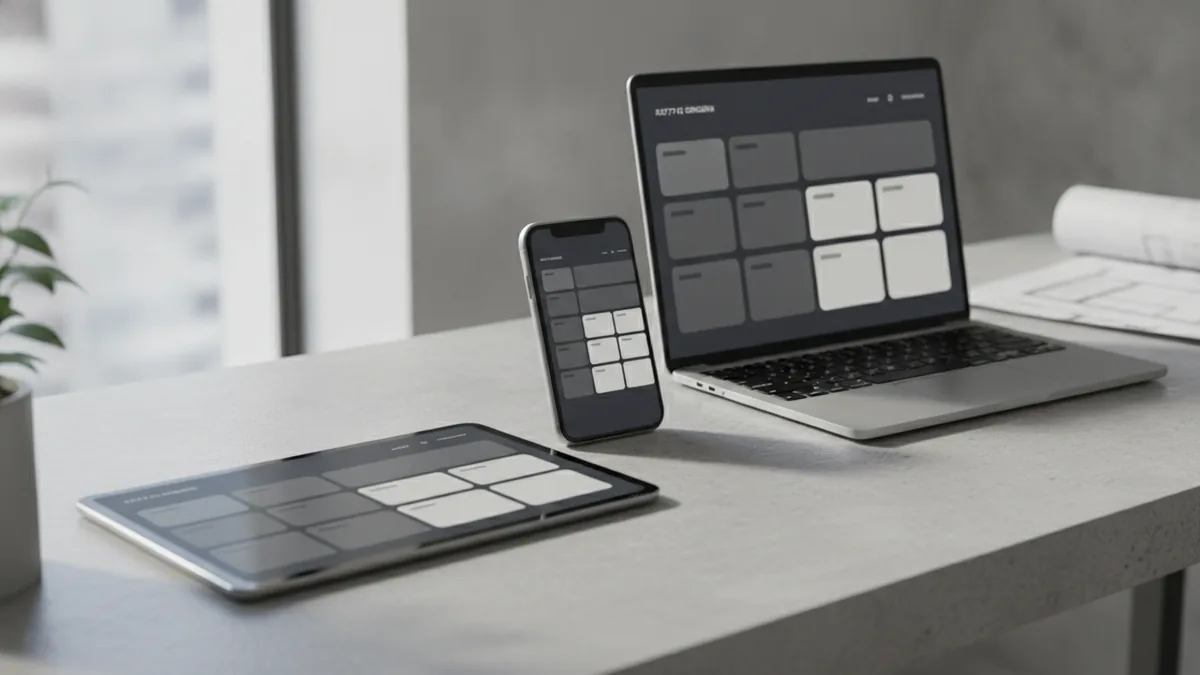
You can use WordPress for many website types, because it is both content-first and highly customizable. If you need a blog, WordPress gives you a strong publishing workflow. If you need a business site, you can build marketing pages and contact flows.
WordPress is also a good fit for portfolios and personal brands. You can show projects, add case studies, and keep an archive of work with search-friendly structure.
For commerce and lead generation, WordPress can connect with specialized tools. A common approach is to install an e-commerce plugin, then style the storefront using themes.
Typical WordPress website categories include:
- Blogs and content sites
- Business websites and landing pages
- Portfolios and creative studio sites
- E-commerce stores with product listings
- Community sites with accounts and roles
- News and magazine-style layouts
WordPress themes and templates: controlling appearance
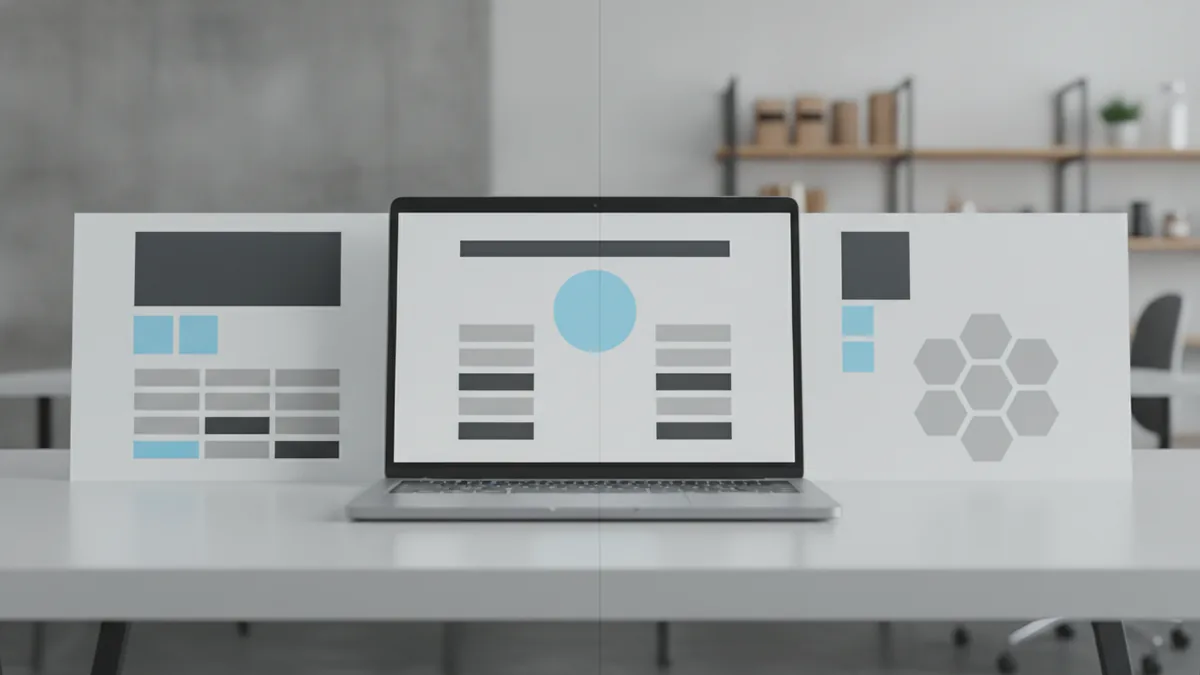
WordPress themes control your site’s visual design and layout. When people ask “does WordPress have templates,” the answer is yes. Themes provide template files and block patterns that decide how different page types look.
For example, a theme can define templates for a homepage, blog index, single post page, and landing pages. It can also style navigation, typography, and colors across the whole site.
Many themes are built with templates for specific content needs, like event pages or service pages. Others focus on flexibility, so you can assemble pages with blocks and reusable components.
Choosing a theme is about both design and fit. Look for responsive layouts, good performance, and support for the kind of pages you want to publish.
- Templates define the structure of page types
- Styles set colors, fonts, and layout rules
- Template parts reuse headers, footers, and sections

Plugins: extending WordPress functionality
WordPress plugins extend what the CMS can do. This is the most practical way to add features without writing custom code. If you are searching for “wordpress plugins,” this is what they are for: adding tools for SEO capabilities, security, forms, and commerce.
The theme handles the look. The plugin handles the extra features. For example, a theme can provide a blog layout, while an SEO plugin adds metadata fields and guidance for search settings.
Plugins vary widely in quality. Some are lightweight and focused, while others include many modules. To keep sites stable, install only what you need and keep plugins updated.
Common plugin categories include:
- E-commerce tools for products, cart, and checkout
- SEO plugins for titles, descriptions, and indexing controls
- Security plugins for login protection and scans
- Performance plugins for caching and image handling
- Form plugins for contact and lead capture
- Analytics tools for traffic reporting
You will also see caching controls in some plugins. Terms like “flush cache” in WordPress usually mean clearing cached pages so the newest design and content load. That can help after you change theme settings or update templates.
Quick help for common WordPress phrasing
WordPress often uses short UI labels that can be confusing at first. For instance, “private visibility” usually means a post or page is only accessible to users with permission. “Privately published” typically means it is published in the system but not visible to the public.
You may also see publishing and rewrite-related messages depending on your setup. “Rewrite and republish” often refers to updating URL routing or regenerating content links so the site keeps working as expected after a change.
Another common phrase is “purge from cache.” It is similar to flushing cache. It forces the site to stop serving stored pages and rebuild them on the next request.
Some sites use a “press this” feature in the dashboard for quickly saving content from the web. The phrase “what does press this mean on WordPress” usually points to that bookmarking and importing tool. Also, a “slug” is the URL-friendly part of a post name, like /my-post-title/.
How to install WordPress and set it up
To install WordPress, you need a domain and hosting. The domain is your site address, and hosting stores your WordPress files and data. After that, you can install the software and connect it to your domain.
You have two main options: self-hosted vs hosted WordPress. Self-hosted WordPress means you install WordPress software on your own hosting account. Hosted WordPress, like WordPress.com, runs WordPress for you with less setup control.
If you want flexibility and custom hosting choices, self-hosted WordPress is common. If you want a simpler setup, hosted options can reduce the number of technical steps.
Most people also ask “how to install WordPress” with a hosting provider. Many hosts offer a one-click installer inside the control panel. You still connect the domain and confirm the admin account during the setup flow.
- Buy or connect a domain to your hosting
- Create your hosting account and choose a plan
- Install WordPress using one-click or manual install
- Set your site title, admin email, and basic settings
- Choose a theme, then install needed plugins
- Create your first page and publish your first post
Does WordPress support PHP?
Yes. WordPress is built with PHP, so your host must support PHP to run it. Most standard web hosting plans for WordPress include this requirement.
Some people also ask about specific hosts. For example, you may wonder whether “does HostGator support WordPress.” Many major hosts do, typically by offering one-click installers and WordPress-ready environments.
To confirm for any provider, check their hosting requirements and WordPress documentation. Look for PHP support and a supported database setup.
What a WordPress developer does, and when you need one
If you are curious “what does a WordPress developer do,” the role usually goes beyond installing WordPress. A developer builds or customizes WordPress features, shapes layouts, and integrates tools for a specific business need.
A developer may create custom themes, write custom functionality, and tune performance. They can also help with security hardening and plugin compatibility when a site grows.
For many site owners, you can start without a developer. You can pick a theme, add plugins, and publish content right away. Still, a developer is useful when you need custom page templates or deeper integrations.
Development tasks often include:
- Custom theme and template builds
- Plugin setup and custom code for features
- Theme and plugin troubleshooting
- Performance tuning and caching strategy
- Technical SEO improvements
Common questions about WordPress
Below are answers to questions people ask right after learning what WordPress is. These quick answers help you connect the features back to real site tasks.
WordPress also supports SEO capabilities through themes and plugins. But SEO is broader than any one tool. You still need solid page structure, clean URLs, and good content planning.
If you are asking “what does SEO mean in WordPress,” it means setting things up so search engines can find and understand your content. Tools may help with meta fields, sitemaps, and indexing settings.
| Question | Plain answer |
|---|---|
| What does WordPress do? | Manage content and site templates through a dashboard. |
| What does a WordPress developer do? | Customize themes, build features, and fix integrations. |
| What does flush cache mean in WordPress? | Clear cached pages so updates show immediately. |
| What does purge from cache mean in WordPress? | Remove stored cached output and rebuild on next view. |
| What does slug mean in WordPress? | The URL-friendly identifier for a post or page. |
WordPress is flexible, and that flexibility is the point. Once you understand themes and plugins, you can build almost any site type you can describe.
Frequently asked questions
- What does WordPress do for a website?
- WordPress lets you create posts and pages, manage media, and control layout through themes. It also helps teams manage access with roles.
- What are WordPress themes used for?
- WordPress themes control the site’s appearance and page structure. They provide templates for common page types like posts and homepages.
- What do WordPress plugins do?
- WordPress plugins extend functionality without custom builds. They can add e-commerce, SEO tools, security features, and forms.
- How to install WordPress on hosting?
- You need a domain and hosting, then run an installer or do a manual setup. After install, connect your domain and set your admin account.
- Does WordPress support PHP?
- Yes. WordPress runs on PHP, so your host must support it for WordPress to work.
- What does flush cache mean in WordPress?
- It means clearing stored cached pages so visitors see the newest design or content. It is often used after theme or settings changes.
Related reading

What Languages and Technologies Does WordPress Use?
See how PHP, HTML, CSS, JavaScript, and MySQL power WordPress.

The Best Free Web Design Software for Beginners
Compare three free web design platforms for your next website.

How to Choose the Best WordPress Hosting for Your Site
Compare WordPress hosts by speed, uptime, support, security, and price.