How to Create a WordPress Theme From Scratch (Step by Step)
Learn how to create a custom WordPress theme from scratch, plus testing tips for real devices.
Understanding WordPress themes (and what you’re building)
A WordPress theme is the layer that controls how your site looks and how key parts behave. It turns WordPress content into pages, menus, and templates users can view. When you build a theme, you’re also defining how WordPress will load styles, layouts, and the right PHP functions. It’s not “just CSS.”
At a high level, a theme has a theme configuration file and one or more template files. The configuration file tells WordPress the theme name, version, and author. Template files decide what HTML gets rendered on each page. Styles then make that HTML match your design.
Common theme components include style sheets, template files, and optional JavaScript. Themes also use WordPress hooks and filters to add features without editing core. If you’ve ever seen template tags or theme hooks, those are the glue between your theme and WordPress.
Setting up your local development environment
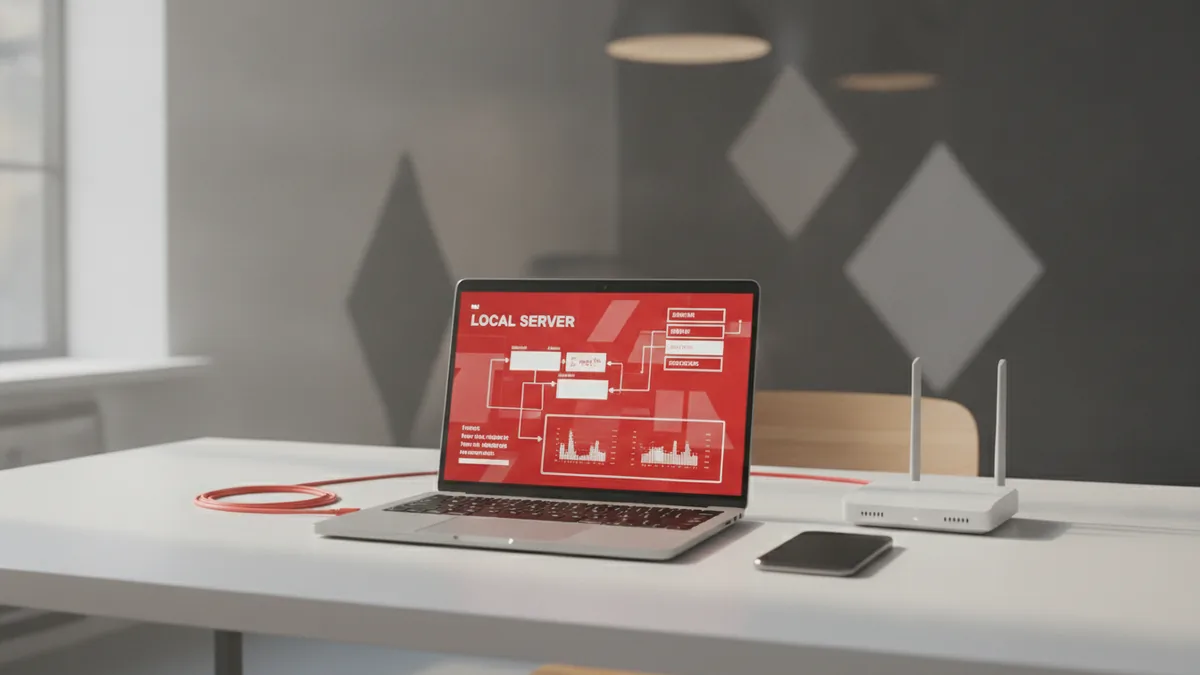
To build a theme from scratch safely, start with a local WordPress installation. You want fast page loads and easy reset when something breaks. A local stack typically includes a web server, PHP, and a MySQL database. Then you install WordPress as you would on a live host.
For theme work, focus on these practical requirements. Your local PHP version should match what your real hosting will use. Your local database can be wiped and recreated without fear. Also, keep file watching turned on so CSS and JavaScript changes show up quickly.
Use a code editor with PHP and HTML support. Enable a browser dev tool for inspecting the generated markup. This matters because WordPress block themes and classic themes can output different HTML structures. You’ll debug faster when you can “see what’s actually on the page.”
- Create a local WordPress install.
- Install a theme scaffold or start with an empty folder.
- Open the site in a browser with dev tools enabled.
- Confirm your PHP version matches your hosting plan.
Block theme vs classic theme: which one should you build?
Yes, you can create your own theme in WordPress. The best path depends on how you want to design and manage templates. A classic theme uses PHP templates and a style.css file to render pages. A block theme relies on theme blocks and a block-based template system.
Block themes often include configuration in JSON and use block markup stored in files. Classic themes usually include PHP files like index.php and single.php. If you want to build a design system and compose pages with blocks, a block theme can feel more modern. If you prefer full control with PHP templates, classic can be simpler to reason about.
Here’s a quick rule of thumb. If your goal is “theme templates plus block editing,” choose a block theme. If your goal is “hand-coded templates and custom loops,” classic may fit better. You can even combine ideas, like using custom fields and PHP functions inside either approach.
| Aspect | Block theme | Classic theme |
|---|---|---|
| Template building | Blocks and block templates | PHP templates and template tags |
| Main entry point | Templates defined for blocks | index.php and page-specific files |
| Customization workflow | Editor-friendly structure | More code changes in PHP |
| Best for | Reusable layouts and block patterns | Custom loops and layout logic |
Essential files for a WordPress theme
Most beginners start by making a theme folder and adding style.css. That’s the theme style and configuration file header together. Without that file, WordPress may not show your theme in the admin screen. After that, you add the templates WordPress needs to render content.
For a minimal classic theme, the essentials usually look like this. You include style.css and at least one template, commonly index.php. If you want basic layout separation, you also add functions.php for registering features and enqueueing scripts. JavaScript usually loads through functions.php as well, so it follows WordPress’s asset loading patterns.
For a block theme, you’ll still need style.css in most cases. But you’ll also add theme configuration files and block template definitions. You’ll typically include an assets folder for images and scripts. Either way, keep your file tree tidy so you can find what you changed.
- style.css (theme configuration and styles)
- index.php (main template, classic themes)
- functions.php (PHP functions and asset loading)
- JavaScript file (optional, loaded via PHP)
- templates or block files (depends on theme type)

How to create a theme in WordPress from scratch (step by step)
This section answers wordpress how to create theme in a way you can follow. It’s a “build the basics first” approach. Start with a minimal theme that renders something, then add features one at a time. This is the fastest way to learn and avoid chasing errors.
- Create your theme folder
Make a new folder inside wp-content/themes. Name it something unique to your project. - Add style.css
Include the theme header comment and a few starter styles. Confirm WordPress lists your theme after activation. - Create index.php
Add the basic WordPress loop output. Use header and footer calls so the site structure is consistent. - Set up functions.php
Register styles and scripts with WordPress enqueue. Add PHP functions for small features before you build big ones. - Build your HTML structure
Create sections for header, main content, and footer. Keep markup clean so you can target it in CSS. - Write CSS for layout
Add a layout scale, typography, and spacing. Use real content sample pages to see how it behaves. - Add JavaScript for small interactions
Enhance menus, toggles, or form behavior. Keep it optional and non-blocking for users without JS. - Use WordPress hooks and filters
Add small theme behaviors with hooks. This helps you customize without hardcoding everything.
That covers the core of how to create theme in wordpress from scratch. If you’re asking how to create a theme in wordpress step by step, treat “render something” as your first win. Then add your header, then your navigation, then your content templates. After that, polish styling and interactions.
When you start adding more templates, follow WordPress’s template hierarchy rules. For example, single posts often use a single.php file in classic themes. Pages use a page.php file when present. If those files don’t exist, WordPress falls back to index.php. That fallback behavior helps you ship early.
Customizing your theme’s look and functionality
Once your theme renders, you’ll want real customization. Start with the basics: colors, fonts, spacing, and page width. Use CSS variables if you expect to tweak branding often. It makes later changes much less painful.
Then customize functionality with PHP functions. For example, you can register navigation menus, add theme supports, and control which post data appears. WordPress hooks and filters let you modify output at specific points. This means you can change things like excerpt length or body classes without rewriting templates.
Consider a child theme for safe iteration. Child themes let you adjust styles and small behavior while keeping parent updates intact. This is useful when you start from a starter theme or when you plan to “release” your theme for reuse. Build your own theme architecture so future you can move faster.
- Update style.css for branding and layout scale.
- Adjust template markup to match your design sections.
- Use functions.php to enqueue assets and add features.
- Apply hooks and filters for targeted output changes.
- Use a child theme for safer updates.
Testing and troubleshooting across devices and browsers
Theme testing should start locally, but it must include realistic checks. Test responsive behavior using browser device tools and real screen sizes. Pay attention to header spacing, menu behavior, and readable line lengths. These are where themes often fail first.
Then test in multiple browsers. A layout that looks perfect in one browser can break in another due to CSS feature support or default styling differences. Make sure your fonts load correctly and that form elements look consistent. Also test slow connection behavior by throttling in dev tools.
Troubleshoot like a developer, not like a guesser. If something looks wrong, inspect the DOM and see which CSS rules apply. If a feature doesn’t work, check whether the script is enqueued and whether your JS selector matches. For PHP errors, enable WordPress debug logging in your local setup.
- Check mobile, tablet, and desktop widths.
- Test Chrome, Firefox, Safari (desktop and iOS if possible).
- Verify menus, forms, and key templates render correctly.
- Inspect CSS rule conflicts in dev tools.
- Review PHP error logs and script loading in the console.
If you plan on releasing a WordPress theme, add a final “compat pass.” Confirm it works with common plugins you use, like SEO tools and caching plugins. Also verify it behaves when Gutenberg blocks insert unexpected markup. This helps your theme survive the real world.
Frequently asked questions
- Can you create your own theme in WordPress without coding everything?
- Yes. You can start with theme scaffolds and then customize. But real control over layout and features still needs HTML, CSS, and PHP work.
- What is the first step when how to create a theme in WordPress from scratch?
- Create a theme folder and add style.css so WordPress can detect it. Then add index.php to render content on the front end.
- What’s the difference between block themes and classic themes?
- Block themes use block templates and a block-first structure. Classic themes rely more on PHP template files like index.php for rendering.
- Which files are essential for a basic WordPress theme?
- A minimal classic theme typically needs style.css, index.php, and often functions.php. You can then add JavaScript and more templates as needed.
- How do I test my WordPress theme on different devices and browsers?
- Use responsive checks and real screen sizes for layout validation. Then test in multiple browsers and inspect CSS and console errors when something breaks.
- Should I use a child theme while building?
- If you start from an existing theme, yes. Child themes make safe changes so parent updates don’t wipe your work.
Related reading

How to Design Your Website Using WordPress
Plan, build, publish, and maintain a WordPress site with confidence.
How Do I Hide My WordPress Site From Public View?
Lock your whole site or limit access to selected WordPress content.
Why You Can’t Add Plugins in WordPress
Fix plugin errors, install tools, and keep your WordPress site tidy.