How to Create a Custom WordPress Theme (Step-by-Step Guide)
Learn how to create a custom WordPress theme with a full build, style, test, and launch guide.
Introduction to WordPress theme development
You can create a custom WordPress theme by building a small theme folder, wiring core PHP files, and styling HTML output with CSS. Then you test the theme across devices and roles, and ship it through WordPress’s theme installer. This guide walks you through the full workflow from first folder to ongoing updates.
If you are starting from scratch, plan for two loops. First, build the basic template files until pages render correctly. Second, refine the layout and styles until it matches your design and stays usable on mobile.
As you go, keep your theme slim. A lean theme loads faster and is easier to debug than a theme that mixes layout, data, and scripts too tightly.
Understanding what a custom theme is (and why build one)
A custom WordPress theme is a set of templates and assets that control how your site’s pages look and behave. In WordPress, theme files define the HTML structure for pages and posts. They also decide which templates are used, where menus appear, and how sidebars or blocks are rendered.
Pre-made themes are useful, but they often force you into their design system. When you create your own theme, you can match typography, spacing, and layout rules exactly. You also avoid heavy features you never use.
Another advantage is long-term maintainability. If you follow theme development best practices, your theme becomes predictable. That makes it easier to update plugins and WordPress versions without breaking layout.
- Custom themes give you full control of template structure.
- You can keep assets minimal for better speed.
- Theme code is tailored to your content types and layout.
Essential technologies you will use
WordPress theme development is mainly a mix of markup, styling, and server-side logic. You will use HTML structure as the theme’s page layout. Then CSS for styling themes, including typography, spacing, and responsive layout.
On the server side, WordPress themes rely on PHP. PHP functions for WordPress generate the page output and load templates based on the current request. You will also use JavaScript for interactivity, like toggles or small UI behaviors.
For styles, many developers start with plain CSS. Others use SASS to make large styles easier to manage. Either way, the final theme ships CSS to the browser.
| Tech | Main role in a theme |
|---|---|
| HTML | Template markup for pages and posts |
| CSS (or SASS) | Visual styling and responsive web design |
| PHP | Theme templates and WordPress hooks |
| JavaScript | Optional UI interactivity and enhancements |
Step-by-step guide to creating a custom WordPress theme
This section covers step by step custom theme WordPress setup. The goal is to get a working theme installed first, then expand it into full templates. Use a local WordPress installation for faster iteration.
First, confirm you have WordPress installed and can log into the admin area. A quick method is to use a local tool or your web host’s staging environment. Either way, ensure you can install plugins without permission errors.
- Create the theme directory. Go to wp-content/themes and create a folder like my-custom-theme.
- Add the theme header file. Create a file named style.css in that folder and add the required theme metadata.
- Create a basic entry point. Add an index.php so WordPress can render something when no specific template matches.
- Add a template layout. Create header.php and footer.php, then include them from index.php.
- Register menus and assets. In functions.php, register a navigation menu and enqueue your CSS.
- Test the install. Go to Appearance > Themes and activate your new theme.
Here is a practical directory setup that stays easy to reason about:
- my-custom-theme/style.css
- my-custom-theme/index.php
- my-custom-theme/functions.php
- my-custom-theme/header.php
- my-custom-theme/footer.php
- my-custom-theme/screenshot.png
- my-custom-theme/assets/css/style.css
- my-custom-theme/assets/js/app.js
Next, focus on a clean HTML structure for pages. Keep header output consistent across templates. Also keep footer output consistent so your layout and scripts load predictably.
When your theme starts to grow, add template files for common cases. For example, create single.php for individual posts and page.php for static pages. Then add template parts for repeated sections, like a “content header” block.
Styling your custom theme with CSS (and making it responsive)
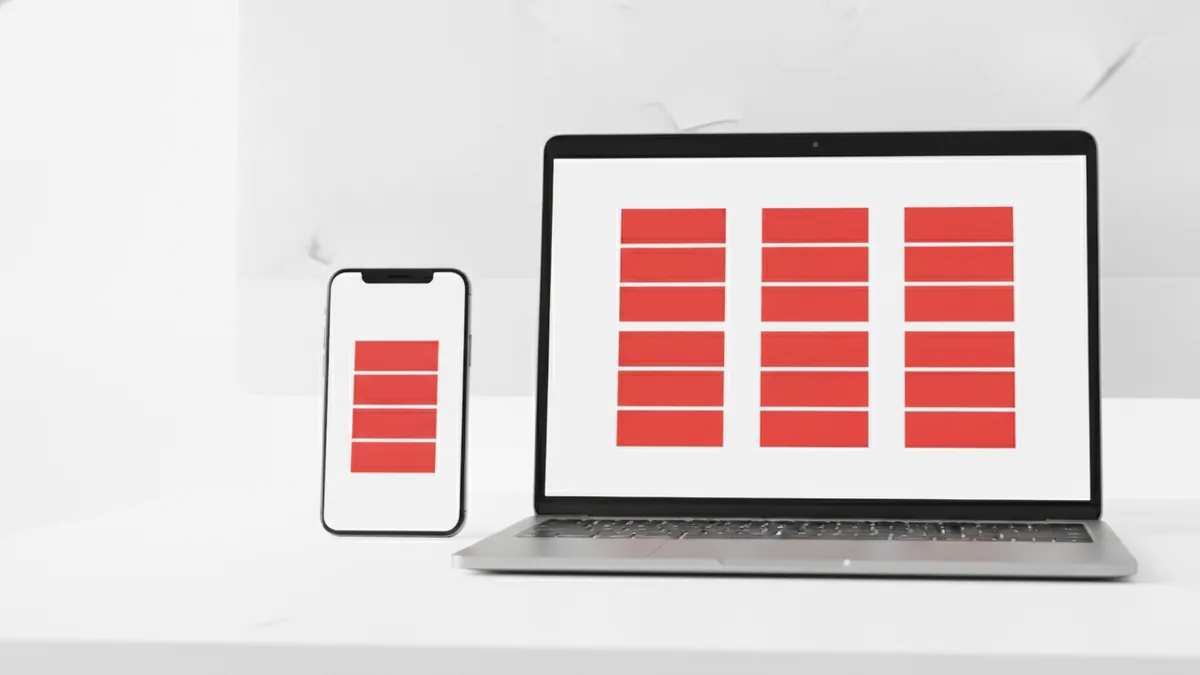
Once your theme renders HTML, styling is where it becomes a real site. Start by building a CSS foundation: set box-sizing, base font, and link styles. Then define layout wrappers and spacing rules that match your design.
If your design includes a grid, use a responsive web design approach from day one. A common approach is a mobile-first layout. You define styles for small screens first, then add breakpoints for tablets and desktops.
For WordPress theme styling, keep your selectors structured. Target semantic containers like header, main, and footer. Avoid deeply nested selectors because they are harder to override later.
If you use SASS, compile it to a single CSS file for production. Enqueue only the built CSS file in WordPress. This reduces browser requests and keeps the theme easier to debug.
- Start mobile-first, then add breakpoints.
- Use semantic containers for CSS targets.
- Keep your theme’s CSS file count low.
Also check interactive components. If you add JavaScript for a menu toggle, make sure it works with keyboard navigation. Your styles should support focus states, not just hover effects.
For performance, avoid large background images on first load. Use modern formats if your host supports them, and keep image dimensions sized to your layout. Speed helps your theme feel polished even before advanced features are added.
Testing and launching your theme
Before you ship, test your theme for functionality, usability, and mobile compatibility. The simplest test is a full content walkthrough. Create a few pages, a post, and test your menu links, featured images, and page templates.
Then test with different user roles. An editor account should be able to create and publish content without layout breaks. Also check your theme in combination with common plugins you plan to use.
Mobile testing matters because layout bugs show up differently. Test on at least one small phone width, one tablet width, and one desktop width. Then validate that typography stays readable and buttons remain tappable.
| Test area | What to look for |
|---|---|
| Template output | Correct header/footer on pages and posts |
| Links and menus | No broken anchors or missing navigation |
| Forms | Submission works and shows feedback |
| Mobile layout | No overflow, readable line length, usable buttons |
| Accessibility basics | Focus states visible and keyboard navigation workable |
Finally, launch with a plan. If possible, use staging first. Then swap the live theme during a low-traffic window. Keep a backup so you can roll back if something breaks.
Maintaining and updating your theme
Maintenance is where most custom theme projects succeed or fail. WordPress and plugin updates can change how templates are expected to behave. So keep your theme development clean and track changes in your dependencies.
Start with security basics. Use HTTPS, update your libraries, and avoid adding custom admin screens unless you must. Keep an eye on what WordPress hooks you rely on, since hooks can evolve across major versions.
Also manage your CSS and scripts like a product. Minify production assets, and avoid loading scripts on every page if they are only needed on one template. As the theme grows, remove unused styles and scripts to keep load time stable.
- Update and retest after WordPress core updates.
- Review plugin compatibility when layouts use plugin output.
- Version your theme and document changes between releases.
If you are unsure where to start, write down your theme’s template map early. Knowing which template files handle which page types makes future updates safer. It also makes debugging faster when something looks off after a change.
To connect your theme to real workflows, ensure you can handle “how to create a website in WordPress step by step” type tasks using your templates. Users should be able to build pages and posts that naturally map to your design. That is the best sign your template structure is solid.
Step-by-step
- 01 Set up the theme folder and header
Create a folder under wp-content/themes and add style.css with the theme header metadata. This is what lets WordPress recognize and list your theme.
- 02 Create core template files
Add index.php plus header.php and footer.php. Include header and footer from index.php so every page has consistent layout.
- 03 Add functions for menus and assets
In functions.php, register navigation menus and enqueue your CSS file. Keep your assets loading predictable and page-appropriate.
- 04 Build template parts and content templates
Add page.php and single.php if you want separate layouts for pages and posts. Use template parts for repeated sections like content headings.
- 05 Style and refine responsively
Write your CSS to match your design, using mobile-first breakpoints. Check typography, spacing, and button sizes across screen widths.
- 06 Test with real content and devices
Create sample pages and posts, then verify menus, links, and forms. Test on phone, tablet, and desktop before activation on a live site.
- 07 Launch and keep the theme updated
Deploy on staging first, then roll out to production. After launch, update the theme and retest when WordPress or plugins change.
Frequently asked questions
- What is a custom WordPress theme and what does it include?
- A custom WordPress theme is a set of template files and assets that control how your content is displayed. It includes PHP templates, a style.css file, and often header.php and footer.php for consistent layout.
- How do I create a custom theme for WordPress step by step?
- Start by creating your theme folder, then add style.css with the theme header. Next, add index.php, header.php, footer.php, and functions.php, then activate it under Appearance > Themes.
- What files should I structure first in a new theme?
- Begin with index.php, header.php, footer.php, and functions.php. Then add page.php or single.php based on what content types you need to support.
- How do I style a custom WordPress theme to be responsive?
- Use a mobile-first CSS approach with breakpoints for wider screens. Keep your selectors tied to semantic containers like header, main, and footer, and verify tap targets on mobile.
- What should I test before launching my WordPress theme?
- Test page templates, navigation menus, and forms on real content. Also check mobile layout, keyboard focus states, and how your theme behaves with the plugins you plan to run.
- How do I maintain and update a custom WordPress theme safely?
- Update your theme regularly and retest after WordPress core updates. Review plugin compatibility, keep assets lean, and follow security best practices like using trusted dependencies.
Related reading

How to Design Your Website Using WordPress
Plan, build, publish, and maintain a WordPress site with confidence.
How Do I Hide My WordPress Site From Public View?
Lock your whole site or limit access to selected WordPress content.

Why You Can’t Add Plugins in WordPress
Fix plugin errors, install tools, and keep your WordPress site tidy.