How to Tell If Your WordPress Site Is Hacked (and Fix It)
See signs of a hack, check for malware, clean safely, and lock down WordPress.

Signs your WordPress site may be hacked
If you suspect compromise, look for clear behavior changes first. The fastest clue is content that you did not publish. For example, new pages or blog posts appear, links point to strange domains, or your homepage layout suddenly changes.
Another strong sign is trouble accessing the admin area. You might get locked out, see repeated password reset prompts, or fail login even with correct credentials. Attackers often create new admin accounts or swap your existing admin session with a backdoor.
Next, check what search engines report. If you see warnings in Google Search Console, users may see “This site may be hacked” or browser malware alerts. Those warnings usually appear after crawlers detect suspicious scripts or files on your site.
Also watch for unusual server load and traffic. A sudden drop in traffic can mean search engine de-indexing. At the same time, CPU spikes can indicate injected miners or heavy redirects running in the background.
- Unexpected posts, pages, or footer links
- Unknown admin users or failed logins
- Browser or Search Console malware warnings
- Traffic drops, redirect chains, or strange outbound requests
- Admin scripts added to theme or plugin files
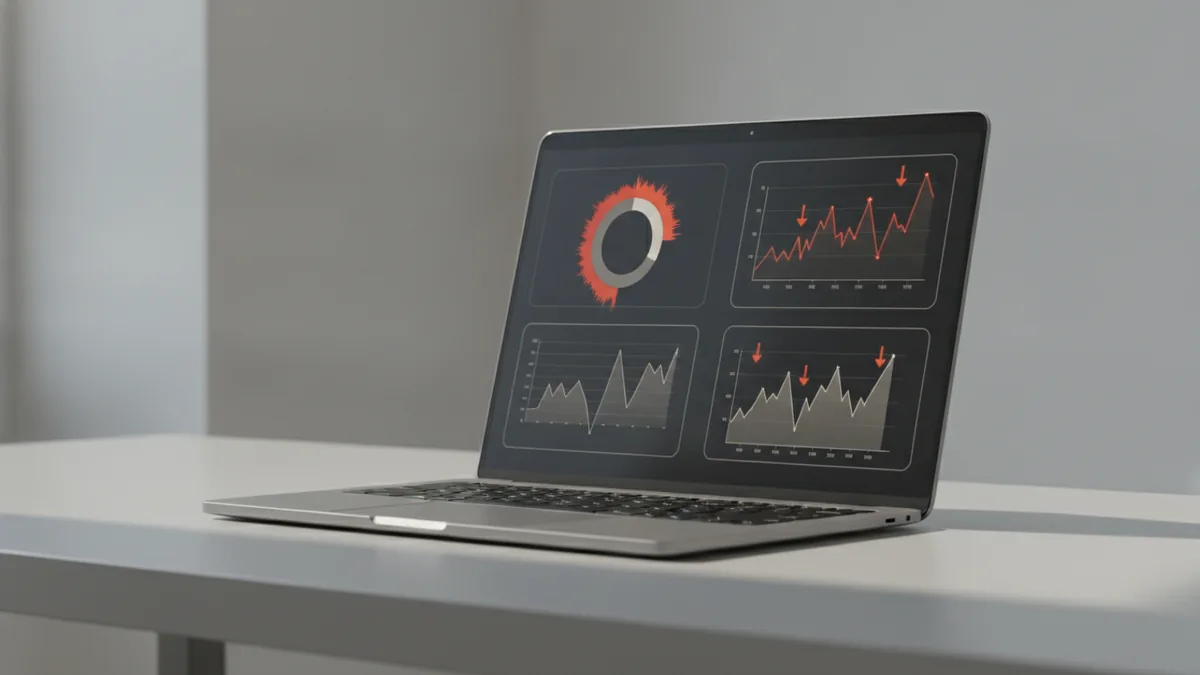
How to check if your WordPress site is hacked
Start with observation and audit, not guesses. If you can still log in, check your Pages and Posts for anything new. Then compare what you see now with a known-good date from your records.
Next, verify user accounts and roles. Go to Users in the WordPress admin and look for accounts you did not create. Pay attention to usernames with similar names, odd display names, and accounts with Administrator or Super Admin roles.
Then monitor traffic and server logs. A sudden traffic drop often pairs with search engine actions. An increase in 404 errors from wp-admin or wp-login.php can hint at brute force attempts or probing.
Now confirm whether core files and uploads look altered. Use checking file integrity tools to compare your WordPress core and theme files to expected versions. If you do not have a baseline, you can still compare checksums against a fresh WordPress release.
To answer “is my WordPress site hacked” confidently, scan for malware and backdoors. Security plugins and Malware scanning tools can detect suspicious patterns, injected iframes, and known bad code. Use more than one scanner when possible, since attackers can evade signatures.
- Check Search Console and browser warnings for malware signals
- Review Pages, Posts, and menus for unexpected changes
- Inspect Users for unknown accounts and admin role changes
- Check server logs for spikes, redirects, or login storms
- Run WordPress security plugins and malware scanners
- Use file integrity checks on core and theme folders
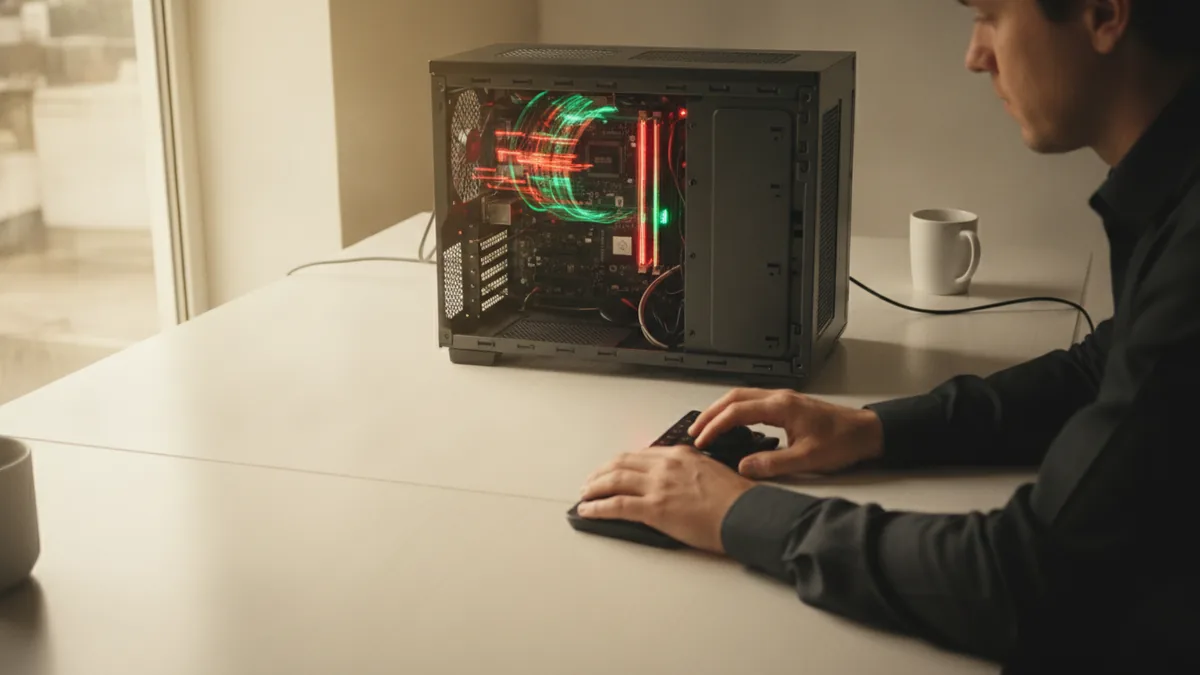
Steps to clean a hacked WordPress site
When you see clear evidence, act quickly but carefully. The first move is to isolate the site from further damage. If you can, put the site in maintenance mode or temporarily block external traffic while you clean.
Next, preserve evidence and stop the attacker from reinfecting. Make a full backup of your web root and database before you change anything. If your hosting panel supports snapshots, create one now.
The most reliable “how to clean a hacked wordpress site” path is restoring from backup. Pick a backup from before the changes you observed. If you restore too late, you may bring the malicious code back with the same files and users.
If backups are not available, do a manual recovery. Start by scanning files in wp-content, especially themes and plugins, since injected code often lives there. Look for obfuscated PHP, suspicious base64 strings, and unexpected eval or gzinflate usage.
Then update everything you still trust. Update WordPress core, all themes, and all plugins to their latest versions. Also remove any plugins or themes you do not need, since dormant code can still be used as an entry point.
After cleaning, reset credentials and sessions. Change your WordPress admin password to a strong, unique value. Also revoke active sessions if your plugin or hosting supports it, and delete unknown user accounts.
| Goal | What to do | Why it matters |
|---|---|---|
| Remove the payload | Scan and review wp-content files, then delete infected assets | Injected scripts often remain in themes or plugin folders |
| Restore trust | Restore from a known-good backup when possible | It prevents you from rebuilding from already tainted files |
| Close access | Delete unknown users, update passwords, and check admin settings | Backdoors often rely on new accounts or persisted sessions |
| Patch weaknesses | Update core, themes, and plugins | Many hacks exploit old versions with known flaws |
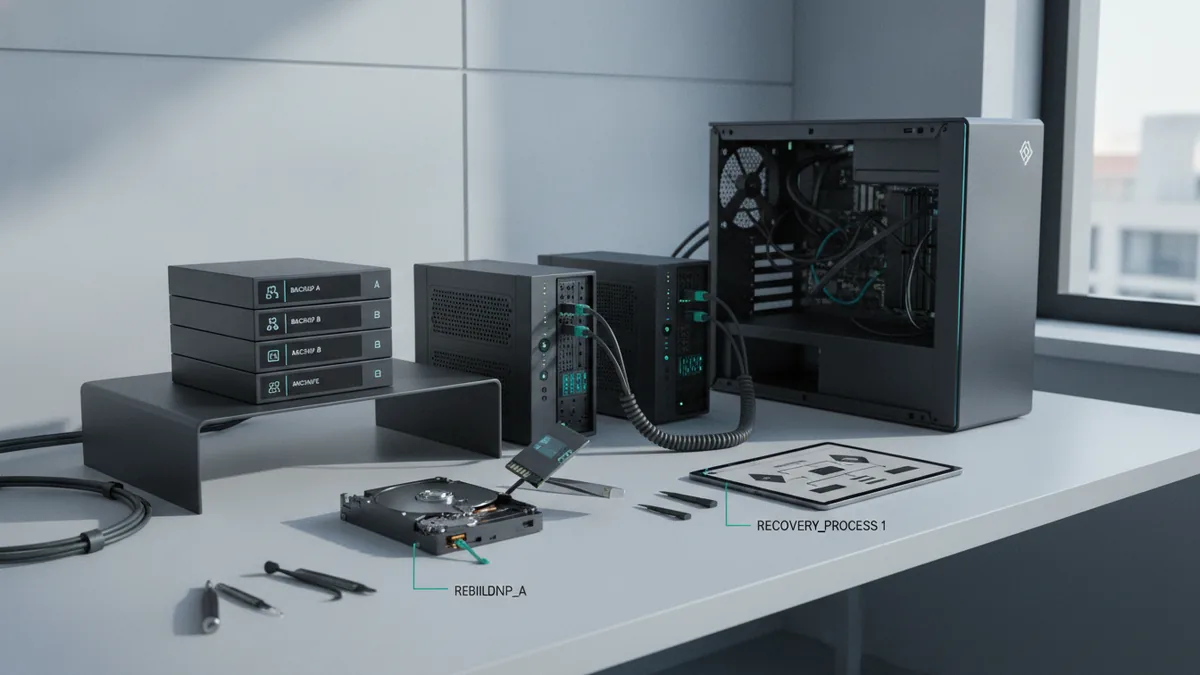
Preventing future hacks on WordPress
Cleaning is only half the job. The real win is preventing reinfection by removing the gaps the attacker used.
One of the best steps is upgrading your baseline security. Enable two-factor authentication for all admin users. Use strong passwords generated uniquely for each account, and avoid reusing the same password across email and hosting.
Next, keep WordPress up to date. Your WordPress version matters, because known vulnerabilities get patched in new releases. If you are unsure what to update first, prioritize WordPress core, then plugins, then themes.
To support “how to tell wordpress version,” check your admin dashboard. Go to Dashboard, then look for WordPress version details in the site or updates area. You can also compare plugin and theme versions against vendor release notes.
Also tighten user permissions. Only grant Administrator roles to people who need them. For editors or writers, use lower roles and remove access to plugin or theme management where possible.
Finally, use ongoing monitoring. A WordPress security plugin for monitoring and protection can alert you to file changes, login spikes, and policy violations. It can also block common attack patterns like brute force attempts and suspicious request patterns.
- Enable two-factor authentication for admin accounts
- Use unique strong passwords and change them after a cleanup
- Update WordPress core and all plugins regularly
- Remove unused themes and plugins to reduce attack surface
- Use a security plugin for monitoring, alerts, and blocking
- Back up your site on a schedule and test restores
Common WordPress vulnerabilities that lead to hacks
Most WordPress compromises come from a small set of weaknesses. Outdated core files and unpatched plugins are a top cause. Attackers scan the internet for known flaws and then try common payload paths.
Weak login security is another frequent entry point. If admin passwords are guessable or if two-factor authentication is off, brute force attacks succeed more often. Even a short window with leaked credentials can be enough for an attacker to create a new user.
Another common issue is risky permissions. If someone installs a plugin they do not understand, it may request more access than needed. Some malware uses file writes through plugin capabilities to drop backdoors into themes or uploads.
Finally, file integrity drift can hide persistent changes. Even if you remove suspicious posts, injected PHP in theme files can still redirect visitors. That is why checking file integrity and reviewing modified files is so important.
If you want a practical way to keep track, make a simple “known-good” baseline. Record which plugins and themes you run, and keep their versions. Then you can quickly spot what changed after “my wordpress website is hacked what should i do.”
- Unpatched WordPress core, themes, or plugins
- Brute force and credential stuffing against wp-login.php
- Excessive permissions granted to users or plugins
- Injected code in wp-content files and uploads
- Weak file permissions that allow unexpected writes
Best practices for WordPress security
Think of security as routine care, not a one-time cleanup. Set a schedule for updates and reviews. Many teams update monthly, then do quick checks after major changes.
Backups are your safety net. Use a backup system that lets you restore both files and the database. Also test a restore occasionally, because a backup you never verify can fail when you need it most.
Monitoring should be continuous. Security plugins can scan for malware, watch for suspicious logins, and alert you when core or theme files change. Pair that with Search Console checks so you can respond quickly to security warnings.
Harden your login. Add two-factor authentication and limit failed login attempts if your host supports it. Also consider signing out old sessions after you reset passwords during a cleanup.
To “how to prevent wordpress from getting hacked,” keep your site lean. Remove unused plugins and unused themes. The fewer components you run, the fewer vulnerabilities you need to patch.
If you operate multiple sites, keep them on separate credentials and separate hosting accounts. Shared passwords across sites multiply the impact of a single credential leak. This is a common reason attackers keep coming back even after you fix one site.
- Back up regularly, then test restores
- Enable two-factor authentication
- Keep WordPress core and plugins updated
- Review users and permissions monthly
- Use file integrity checks and security plugin alerts
- Remove unused themes and plugins
If you need a quick plan right now
If you are staring at the message “this site may be hacked wordpress how to remove,” start with triage. Put the site into maintenance mode, preserve a backup, and run scans to find the entry and payload. Then restore from a clean backup or rebuild infected files from trusted sources.
After cleanup, update everything and reset admin passwords. Then enable two-factor authentication and set up monitoring. This turns a one-time fix into a safer setup you can maintain.
Frequently asked questions
- How to check if WordPress site is hacked quickly?
- Start by reviewing pages and posts for changes you did not make. Then check for unknown admin users and scan with a WordPress security plugin.
- What to do if your WordPress site is hacked?
- Put the site in maintenance mode, save a backup, and run malware scans. Restore from a clean backup or rebuild infected files, then reset passwords and users.
- How to fix a hacked WordPress site without losing all data?
- Restore from a backup taken before the compromise. If you lack one, preserve your current backup, then remove injected code and update core, themes, and plugins.
- How do I tell what WordPress version I am running?
- In your dashboard, check the WordPress version in the updates or about section. You can also confirm it from the core files on your server.
- Will updating plugins and themes remove malware?
- Sometimes, but not always. You must scan and remove injected code, then update to stop reinfection from known vulnerabilities.
- How to prevent WordPress from getting hacked after cleanup?
- Enable two-factor authentication, use strong unique passwords, keep WordPress core updated, and use a security plugin for monitoring and alerts.
Related reading

What WordPress Theme Is That Website Using?
Find a site’s theme, check its fit, and make safe changes to your own.

How to Create, Customize, and Find WordPress Themes
Build a custom theme, tailor an existing one, or identify a site's WordPress theme.

WordPress Galleries for Images and Video
Build a WordPress gallery with native blocks or a plugin.