How to Prevent WordPress Hacking (Practical Security Guide)
Stop WordPress hacks with updates, 2FA, strong logins, backups, and monitoring.

Why WordPress security matters
If you want a direct answer to “how to prevent wordpress hacking,” start with one idea: reduce entry points and close them quickly. WordPress powers a huge share of the web, so hackers keep returning to it. They look for easy wins like stolen passwords, unpatched software, and weak admin access.
Many compromises begin long before malware ever touches your site. A common path is a brute force login attempt, followed by a successful password guess. After that, attackers may add hidden admin users, change plugin files, or redirect visitors.
Good security also protects your content and your brand. If attackers alter pages, your search rankings and customer trust can take a hit. If you build the habit now, “wordpress security how to stop hackers” becomes a routine you can manage.
- Goal: stop access before attackers reach admin tools.
- Goal: patch known gaps fast when they appear.
- Goal: recover fast if something still goes wrong.

Common vulnerabilities attackers target
To protect my wordpress blog from hackers, you need to understand what they hunt. The most frequent issues are not “mystery hacks.” They are predictable weaknesses in login controls, outdated software, and risky add-ons.
Compromised passwords and brute force attacks top the list. Attackers use leaked credential lists and then try many login attempts per minute. If you do not have rate limits or lockouts, even a decent password can be pressured hard.
Next come plugin and theme vulnerabilities. Insecure plugins can allow file edits, privilege changes, or unsafe API calls. Even a legitimate plugin can be dangerous if it has a known bug that no one has patched.
Finally, misconfigured permissions can help attackers move after login. If your WordPress user roles are too powerful, attackers can do more damage. If you allow file editing from the browser without guardrails, compromises spread faster.
- Weak login controls enable brute force protection failures.
- Plugin vulnerabilities can expose database reads or file writes.
- Outdated WordPress updates leave known holes open.
- Loose user permissions make post-login damage worse.
Essential security measures you can apply today
These steps answer how to protect wordpress from malware by shrinking risk and improving detection. Focus on the basics first. They are boring, but they are also the most reliable.
Start with strong, unique credentials. Use long passwords and a password manager, not reused passwords. If you share passwords across sites, a single leak elsewhere can unlock your WordPress admin.
Next, lock down access. Limit who can access wp-admin, and use separate accounts for different roles. If you have multiple writers, do not let them use the same admin login. Use the least privilege model so user permissions match the job.
You should also consider a firewall for WordPress. A good web application firewall can block many common probe attempts and suspicious requests. If you have to choose one control beyond passwords, rate limiting and request filtering is often the best first pick.
Monitor site activity to spot trouble early. Look for repeated failed logins, odd plugin installs, and admin changes. If you catch problems early, you can remove the attacker without rebuilding your whole site.
- Use unique passwords for every WordPress account.
- Remove unused admin accounts and shared logins.
- Apply role-based permissions and audit user roles monthly.
- Turn on security logs and review them weekly.
Choosing secure hosting that reduces your risk
Secure hosting is not just a speed decision. When you choose a host, you are also choosing how the platform handles attacks. A good provider helps with brute force protection, patching, and safe defaults.
Look for hosts that offer automated security updates and hardened configurations. Managed WordPress hosting often includes server-level protections like request filtering and monitored logs. Ask what they do when they detect suspicious traffic or file changes.
Also verify backup support and restoration speed. If your host can restore to a clean point quickly, your recovery time drops a lot. For many teams, that matters more than small speed gains.
Finally, check how the host handles malware scanning and isolation. Some providers run periodic scans or quarantine suspicious files. Others only respond after you contact support. If you want how to protect my wordpress blog from hackers, pick a host that acts quickly by default.
| What to ask your host | Why it matters |
|---|---|
| Do you block brute force login traffic? | Stops repeated guess attempts before login succeeds. |
| Are server and platform security patches automatic? | Reduces exposure from known server weaknesses. |
| Do you support off-site restorations? | Helps you recover fast after a compromise. |
| Do you run malware scanning or integrity checks? | Helps detect tampering before it spreads. |
Keep WordPress, themes, and plugins updated
WordPress updates are one of your strongest defenses. Regular updates to WordPress core, themes, and plugins are crucial for security. Attackers routinely target sites that lag behind patched releases.
Build an update habit instead of relying on “someday.” A practical plan is to update on a schedule, then test. For example, update plugins and themes weekly on a staging site, if you have one. If you do not, update in off-peak hours and check your key pages after.
Also remove what you do not use. Inactive themes and unused plugins still exist on your server. If a dormant plugin has a vulnerability, it can still become a path for attackers.
Watch for plugin vulnerabilities in popular tools. A small plugin used for forms, caching, or page building can become a weak link. If a plugin has a security fix, apply it quickly or replace it.
- Update core, themes, and plugins on a schedule.
- Test updates before you roll them to your live site.
- Delete unused plugins and themes.
Use two-factor authentication for admin access
Two-factor authentication adds a strong second layer for site access. It directly improves how to protect wordpress from hacking by making stolen passwords less useful. Even if attackers get a password, they still need the second factor.
Enable two-factor authentication for every admin account. Do not limit it to one user. If an attacker compromises a writer account that still has elevated permissions, your risk goes up.
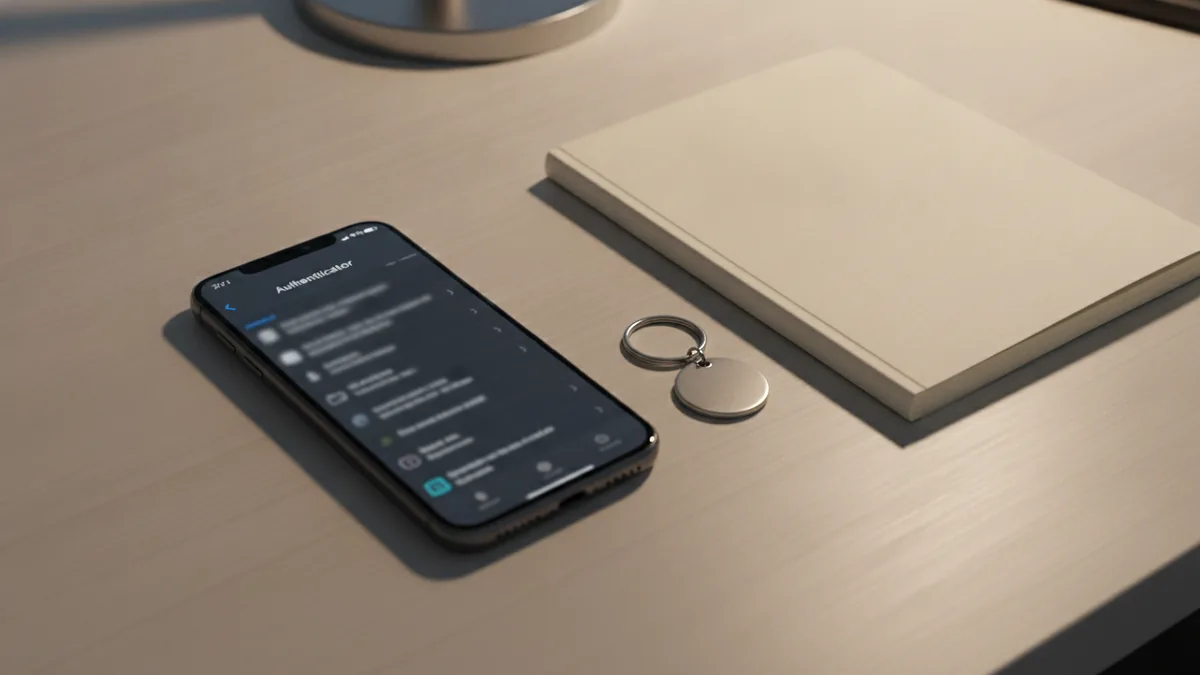
Choose an authenticator app or hardware token when possible. SMS can work, but it can also be easier to intercept. If you use a backup method, store it safely so you do not lock yourself out.
Then pair 2FA with strong login rate controls. If your login system supports it, enable lockouts after repeated failures. This is part of good brute force protection for WordPress logins.
- Turn on two-factor authentication for all admin-level users.
- Prefer authenticator apps or security keys over SMS.
- Use login throttling to slow brute force attempts.
Backups and monitoring for fast recovery
Backups are what let you recover without panic. Off-site backups are essential for quick recovery from potential hacks. If your server is compromised, local backups on the same host can also be damaged or deleted.
Adopt a simple backup strategy with retention. Keep at least one recent backup plus a slightly older backup you trust. Then test restoration at least once, because backups you never test often fail when you need them.
Monitoring ties everything together. Activity log review helps you spot suspicious behavior and respond promptly. Look for unexpected admin user creation, plugin changes, and core file edits. If something seems off, act quickly before the attacker updates again.
Also think about how to protect images on wordpress. Images can be used for social engineering via altered media files or injected content through file handling flaws. If your media library is writable and monitoring is weak, attackers have another place to hide.
- Store WordPress backups off-site.
- Test restores so you know you can recover.
- Review logs for login spikes and admin changes.
- Scan for unexpected file changes after alerts.
When you do all of the above, you are building a layered defense. That is how to protect wordpress site from hacking in a way that holds up when one control fails.
Quick response plan if you suspect a compromise
If you suspect someone broke in, your first move is containment. Stop further changes and do not keep logging in with the same credentials. Assume the attacker might still be active while you investigate.
Next, isolate the site and rotate credentials. Change WordPress passwords, update any API keys, and remove unknown admin users. If you use a security plugin, verify its integrity and update it.
Then restore from a clean backup. Prefer a backup made before suspicious activity began. If you cannot find a clean point, you may need a full rebuild and careful file comparison.
Finally, tighten the controls that likely allowed entry. Check for weak passwords, missing two-factor authentication, and out-of-date plugins. Fix those first so the next attempt is much less likely to succeed.
- Contain the site and suspend risky access.
- Rotate credentials and remove unknown users.
- Restore from a trusted off-site backup.
- Patch the gaps that enabled the breach.
Frequently asked questions
- How do I prevent WordPress hacking on my website?
- Use strong, unique passwords, keep everything updated, and lock down admin access. Add two-factor authentication and review activity logs for suspicious changes.
- What are the most common ways hackers break into WordPress?
- Stolen passwords and brute force attempts are common entry methods. Outdated plugins or themes can also provide an easy path for attack.
- How do I protect my WordPress blog from hackers if I use plugins?
- Update plugins promptly and remove plugins you do not use. Keep an eye on plugin vulnerabilities by watching for security releases.
- How can I protect WordPress from malware?
- Harden login access with 2FA, use secure hosting protections, and run malware scanning when available. Restore quickly from off-site WordPress backups if you see tampering.
- Do I need two-factor authentication for WordPress security?
- Yes, it adds an extra layer when passwords leak. Even if attackers obtain a password, 2FA can block login.
- What backup strategy helps after a WordPress hack?
- Use off-site backups so a compromised host cannot delete them. Test restorations so you know you can recover quickly and safely.
Related reading

How to Check if a Site Is WordPress
Find WordPress clues in a site’s code, URLs, feeds, and design.

What Languages and Technologies Does WordPress Use?
See how PHP, HTML, CSS, JavaScript, and MySQL power WordPress.

The Best Free Web Design Software for Beginners
Compare three free web design platforms for your next website.