WordPress Galleries for Images and Video
Build a WordPress gallery with native blocks or a plugin.
Introduction to WordPress galleries
WordPress gives you a built-in Gallery block for a simple image grid. You can add images from your computer or choose files in the Media Library. For clips, use video blocks or a gallery plugin that supports video sources.
The best choice depends on what the page needs. A small photo set may work well with the native block. A portfolio with filters, varied layouts, or a lightbox may need a plugin. This guide covers how to add a gallery in WordPress without adding tools you do not need.
Plan the gallery before you upload files. Pick images that support the page, and decide whether visitors need captions or a way to open larger views. A little planning helps keep the page clear and quick to load.
Adding a basic image gallery
To learn how to create an image gallery in WordPress, open the page or post where it belongs. Select the plus button, search for Gallery, and add the block. Then upload files from your computer or select images from the Media Library.
Once the images appear, drag them into the order you want. Select an image to add a caption, and use its settings to add alt text. Write alt text that explains the image for visitors who cannot see it. Do not fill it with search terms.
- Choose sharp images that suit the page and look good at the planned size.
- Add captions when visitors need details such as a place, item, or date.
- Leave alt text empty for images that add no useful meaning.
- Use a clear order, such as steps, rooms, or product views.
This is the basic method for how to create a photo gallery in WordPress. Save a draft and check the page before you publish it. Look for odd crops, missing captions, and images that seem out of place.
Using the Gallery block
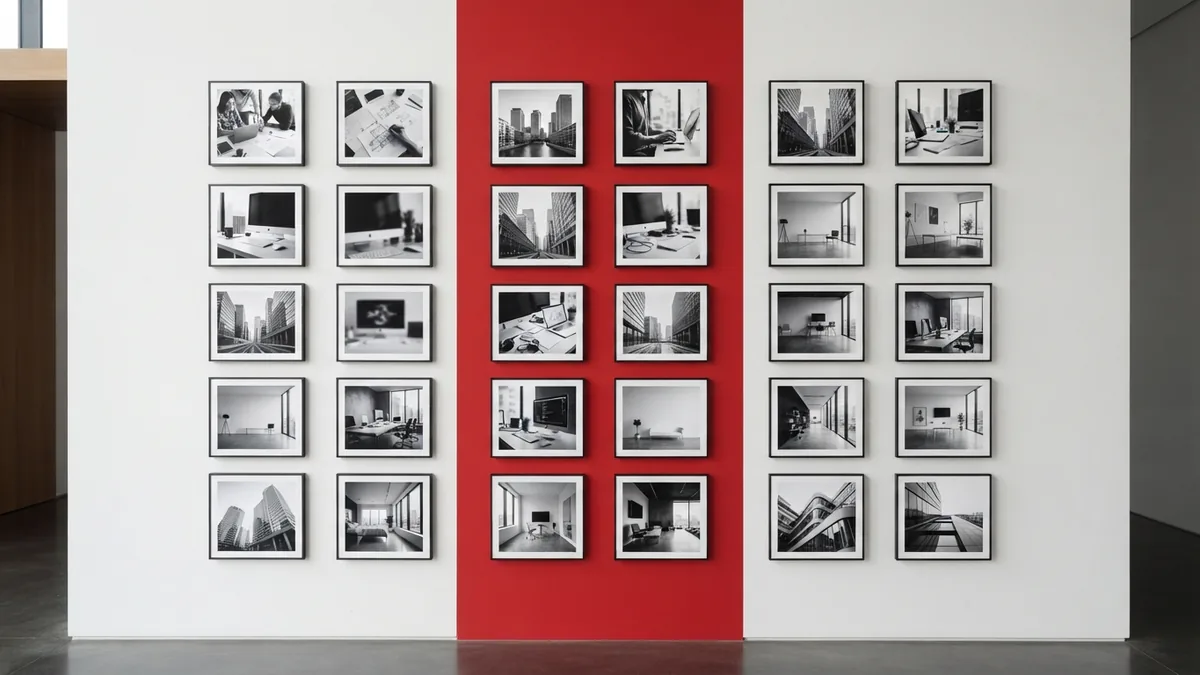
The Gallery block has simple controls for columns and image size. Three columns can suit a wide page, while two columns give each image more room. The right choice depends on the shape of your images and the size of the page.
Try a uniform crop when you want a tidy grid. Keep the original shape when cropping would hide key details. WordPress lists the current options in its Gallery block documentation. Some settings may vary by theme or WordPress version.
Preview the block on a phone as well as a desktop. Check that each image stays clear and captions are easy to read. If the grid feels crowded, lower the column count or use fewer images.
For a basic wordpress gallery how to, add the block, pick images, set the columns, and preview the result. That same process explains how to make a gallery in WordPress for a post or page. Keep the layout simple until a clear need calls for more features.
Creating a video gallery or video page
WordPress can show a clip with a Video block or an embed from a video service. For one or two clips, add them to a page with a short heading and a brief note. Hosting video elsewhere can reduce the large files your site must send.
To learn how to add video gallery in WordPress, first check that your chosen gallery tool accepts video sources. Some plugins can mix images with clips from services such as YouTube or Vimeo. Add a clear title and a short description for each clip.
Make a new page to learn how to create a video page in WordPress. Add an opening note, then place your video blocks or gallery below it. Keep the page focused, and test playback on a phone before you publish.
How to create video gallery in WordPress depends on the tool you use. The same is true when you want to make a video gallery in WordPress. Check the plugin's video support first, then test one clip before adding a full set.
Customizing gallery appearance
Match the gallery to its purpose. A portfolio often needs large images and few captions. A product page may need short captions that name each item. Keep crops alike when images serve the same role, but do not cut off key details.
Responsive design matters because a grid that looks neat on a wide screen may feel cramped on a phone. Preview the page at a narrow width. Reduce the column count if images become too small, and make sure captions remain easy to read.
Image optimization can help the page load faster. Resize large files to a sensible display size, then compress them before upload. Avoid placing many full-size files on one page. If the gallery feels slow, test a smaller set first.
A lightbox can let visitors view a larger image without leaving the page. Use one only when it helps people inspect the images. Test that it works with touch controls and that visitors can close it with ease.
Limits of native galleries
The Gallery block works well for a basic image grid, but it has fewer layout choices than many plugins. It may not offer filters, advanced lightbox settings, or mixed media in the way you want. Those limits matter most for large portfolios or media libraries.
More features do not fix poor image choices or slow files. A plugin still needs well-sized images and a mobile check. Test the page with a small gallery before you add dozens of items.
Keep the visitor's task in mind. If people only need to browse a few images, the native block may be enough. If they need to sort or filter a large set, a plugin could save them time.
Choosing a gallery plugin
Choose a plugin when the native block cannot meet a real need. FooGallery is one option with extra layouts and effects. Compare its features with your plan before you install it. A plugin should solve a problem, not add settings you will never use.
Check that the plugin works with your theme and current WordPress version. Test its mobile layout, image handling, and video support. If you want to know how to use NextGEN Gallery in WordPress, start with a small test gallery and follow the plugin's setup steps.
Some readers search for how to make a photo gallery in WordPress or how to make an image gallery in WordPress. In either case, start with the built-in block. Add a plugin only when you need its extra layout, lightbox, or video features.
Before launch, view the page on a phone and a desktop. Check that images load, captions make sense, and clips play as expected. A simple gallery that works well is better than a complex one that slows the page.
Frequently asked questions
- How do I add a gallery in WordPress?
- Add the Gallery block to a page or post, then upload images or choose them from the Media Library. Set the columns and image size, then preview the page.
- Can I make a video gallery in WordPress?
- Yes. Use a gallery plugin that supports video sources, or add video blocks to a page. Test playback on mobile before publishing.
- Can I add captions and alt text to a WordPress gallery?
- Yes. Add captions to give visitors useful context, and write alt text for images that convey information. Leave alt text empty for purely decorative images.
- Do I need a plugin to create a WordPress gallery?
- No. The built-in Gallery block works well for a basic image grid. Choose a plugin when you need features such as filters, varied layouts, or video support.
- How can I make a WordPress gallery load faster?
- Resize and compress images before you upload them. Use a smaller set of images when a page feels slow, then check the page on mobile.
Related reading
What Is PHP in WordPress and How Do You Work With It?
See how PHP runs WordPress and learn to find and edit its key files safely.
Can You Use HTML in WordPress? Here’s How
Add and edit HTML in WordPress without breaking your pages.
How Do I Remove the Comment Box in WordPress?
Close comments where they distract, and keep them where readers add value.