Can You Build a WordPress Site Offline?
Build and test a WordPress site on your computer, then move it online when ready.

Understanding Offline WordPress Development
Yes, you can build a WordPress site offline on your own computer. A local server runs WordPress without making your site public. You can create pages, test themes, and try plugins before choosing a host.
People call this local WordPress development. Your computer stores the site files and runs the web server and database. After the tools and WordPress files are installed, most site work needs no internet connection.
A local site is private, but it is not a live website. Visitors cannot reach it, and it is not a backup. Think of it as a safe workbench for building and testing.
One limit matters. You may need internet access to download tools, WordPress, themes, or plugins. Your local site may also behave differently from the server you later choose.
Why Build Your Site on Your Computer?
Offline work gives you room to try changes without putting an unfinished site in front of visitors. You can test a new theme, change a menu, or check a plugin on the local copy. If something breaks, your live site stays as it was.
You can also build before paying for hosting. Your computer holds the site while you shape its pages and settings. Once setup is done, you can keep working during an internet outage.
Local tools give you control over the site files and test setup. They are useful for a new site, a redesign, or checks before an update. Local speed may not match your host, though.
- Try themes and plugins without changing your live site.
- Build pages before you buy hosting.
- Test updates in a private setting.
- Work without an active internet connection after setup.
A local site and a staging site are not the same. Staging runs on a server and may better match your host. Use it when you need to see how a change works online.
Set Up a Local WordPress Site
To learn how to build a WordPress site offline, start by choosing local server software. Popular choices include Local, XAMPP, and MAMP. Local is built for WordPress and handles much of the setup. XAMPP and MAMP give you more control, but can need extra steps.
Download and install your chosen tool. With Local, create a site and follow its setup prompts. With XAMPP or MAMP, start the web server and database, then place the WordPress files in the local web folder.
For a manual setup, make a database with the tool’s database manager. Open your local WordPress address in a browser and follow the setup form. Enter a site name, admin username, password, and email address.
Use a strong password, even for a private site. Save the login details somewhere safe. Then choose a theme, add the plugins you need, and build your pages.
- Install Local, XAMPP, or MAMP on your computer.
- Create a site or start its server and database.
- Add WordPress files if the tool does not do this for you.
- Open the local site and finish WordPress setup.
- Build pages, test features, and save a backup.
Keep a copy of your work as you go. A local site is not safe from a disk failure or an accidental file deletion. Save site files and database data in a separate backup.
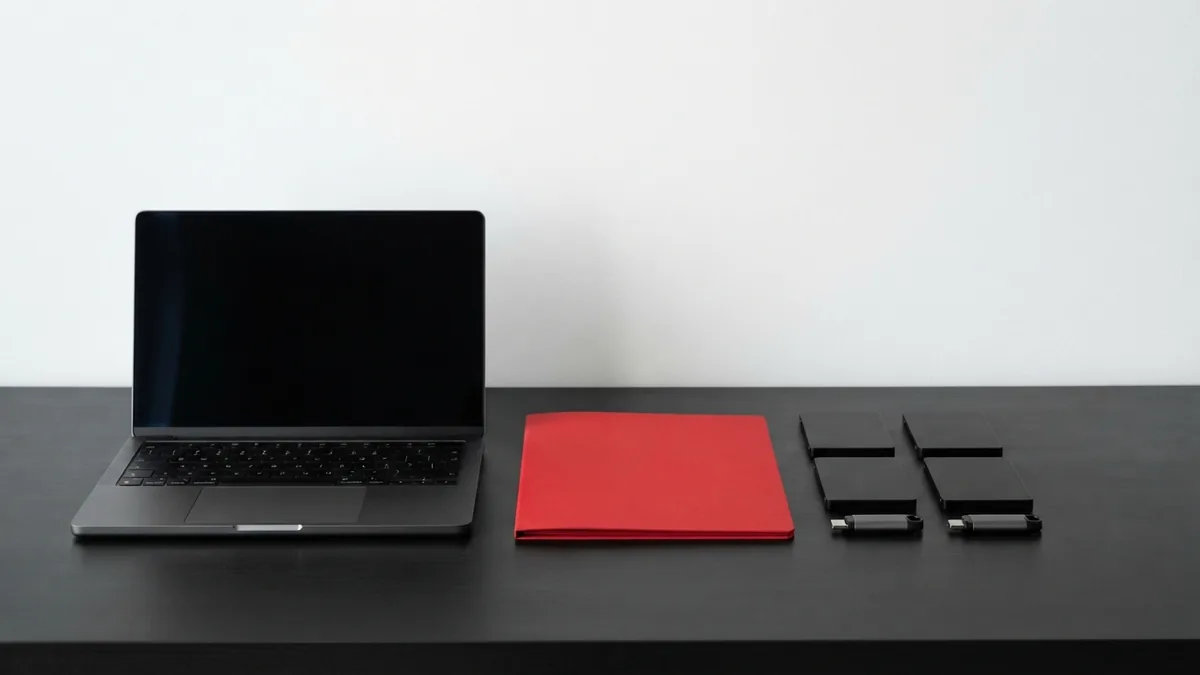
Choose a Local Development Tool
Local is a strong first choice if WordPress is your main focus. It creates local sites and makes it easy to start or stop them. Its features can vary by version, so check the current options before you rely on a tool feature.
XAMPP runs on common computer systems and includes the parts needed for a local server. MAMP is another well-known option, especially for Mac users. Both can run more than WordPress, but you may need to set up files and the database yourself.
Choose based on how much setup you want to handle. A WordPress-focused tool can make routine tasks easier. A general server tool may suit you if you also build other kinds of sites.
Each option lets you create a private WordPress site. Try a small test site before moving a large project. That gives you a chance to learn the tool without risking important work.
Move Your Finished Site Online
Before any move, back up the live site if one already exists. Save its files and database. This gives you a way back if the move fails or replaces content you still need.
A migration plugin can package or copy files and database content. You then import the site to your host. Check the plugin’s limits first, since large sites or host settings may call for extra steps.
You can also move the site by hand. Upload the WordPress files to your host, import the local database, and update the site address. Local addresses may appear in many database entries. Use a WordPress-aware search and replace tool, since plain text edits can harm saved data.
After the move, check key pages, images, forms, menus, and sign-in. Turn on an SSL certificate through your host. Then test the site on a phone and computer before sharing it.
Taking a WordPress Site Offline
Building offline means your site runs only on your computer. Taking a live WordPress site offline means visitors can no longer reach it. These are different tasks, so decide which one you mean before changing anything.
If you want to pause public access, use your host’s maintenance or privacy settings when available. You can also set a page to private or use a maintenance mode plugin. Keep an administrator login and backup so you can restore access.
Some people search for “how to take a WordPress site offline” when they want to work privately. For a new project, create a local copy instead of removing the live site. If the site is already online, back it up before you change access or move it.
The search phrase “wordpress how to take site offline” can also mean shutting down a site for good. In that case, save the files and database first. Ask your host about domain and account settings before ending a plan.
Common Pitfalls and Next Steps
A local site may not start if another app uses the same server port. Close the other app or change the port in your tool’s settings. If WordPress cannot connect to its database, check that the database service is running and the saved login details match.
Some plugins depend on a live domain, an outside service, or an internet connection. They may not work as expected offline. Test those features on staging or on a private live site before launch.
Can I create a WordPress site offline? Yes. Can you build a WordPress site offline with XAMPP or MAMP? Yes, if you install and set up the tools first. For “how do I build a WordPress site offline,” the basic path is to install a local tool, add WordPress, and build on your computer.
If you are asking “how can I build a WordPress site offline,” pick the tool that fits your comfort with setup. When you are ready to publish, back up your work and move it with a plugin or by hand. Check the live site before inviting visitors.
Frequently asked questions
- Can I build a WordPress site offline?
- Yes. Install a local tool such as Local, XAMPP, or MAMP, then set up WordPress on your computer.
- Can I create a WordPress site offline with XAMPP or MAMP?
- Yes. Both can run the local server and database WordPress needs. You may need to set up the files and database yourself.
- How do I build a WordPress site offline?
- Install a local development tool, create a site, and add WordPress if the tool does not do it for you. Then build and test pages on your computer.
- How do I move a local WordPress site online?
- Back up the files and database first. Then use a migration plugin or move the files and database to your host by hand.
- How do I take a WordPress site offline?
- Use your host’s privacy or maintenance settings, or set pages to private. Back up the site first, and keep a way to restore access.
- Is a local WordPress site the same as a staging site?
- No. A local site runs on your computer, while staging runs on a server. Staging can better match your live host.
Related reading

Can You Use Elementor With Any WordPress Theme?
Elementor fits most themes, but a few checks help prevent layout and loading issues.
How Much Does a WordPress Site Cost?
Plan for domain, hosting, tools, and upkeep before you build your WordPress site.

How to Add Categories in WordPress
Set up clear WordPress categories so readers can find related posts with ease.